40 — 粒子形变 shader
简介
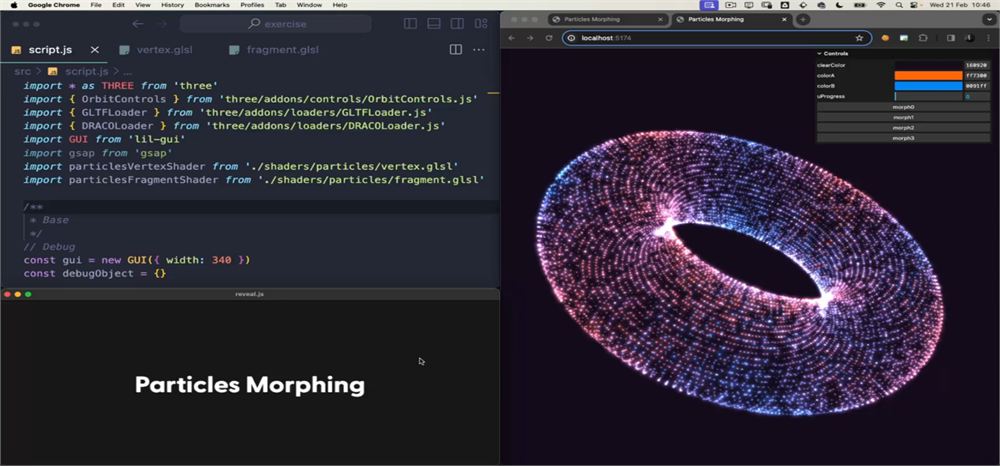
让我们继续粒子系列,这次是一个经典但颇具难度的练习。我们要让粒子发生形变(morph):
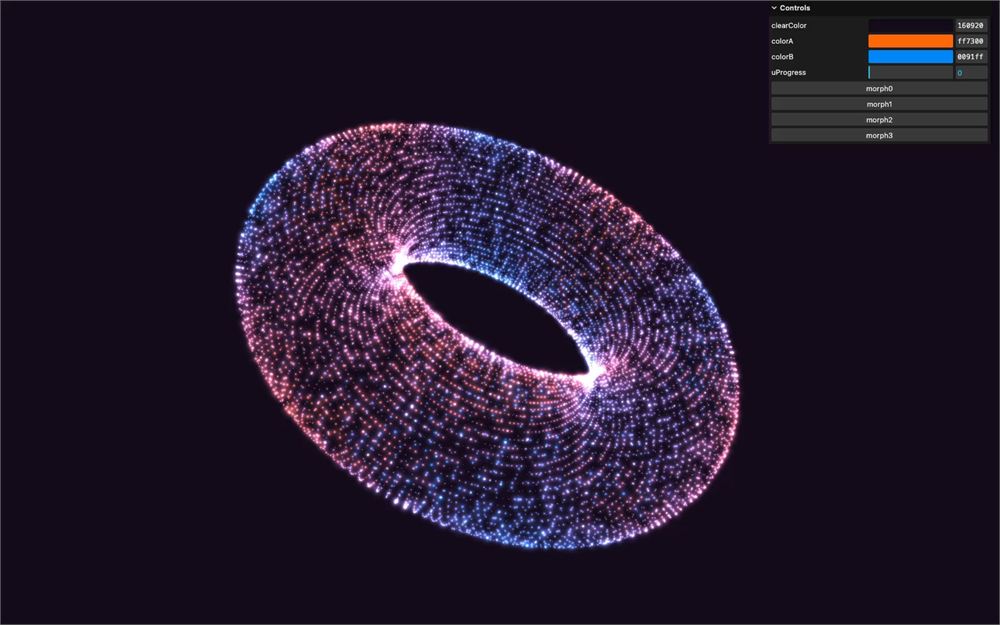
实现该效果有多种方式,我们可以通过在 JS 中直接更新 attribute 本身来完成。但正如我们在之前课程中所见,更新 attribute 对性能不利,而且当粒子数量很大时,根本无法维持良好的帧率。
另一种解决方案是使用 GPGPU。这是一个不错但很困难的方案,因此我们不使用它。虽然它并非用于粒子形变,我们会在后面某一课中学习 GPGPU。
最后,还有一种更简单的方案,它主要依赖 vertex shader,我们现在就来探索它。
设置
起始代码与上一课非常相似,粒子已经准备好被增强:
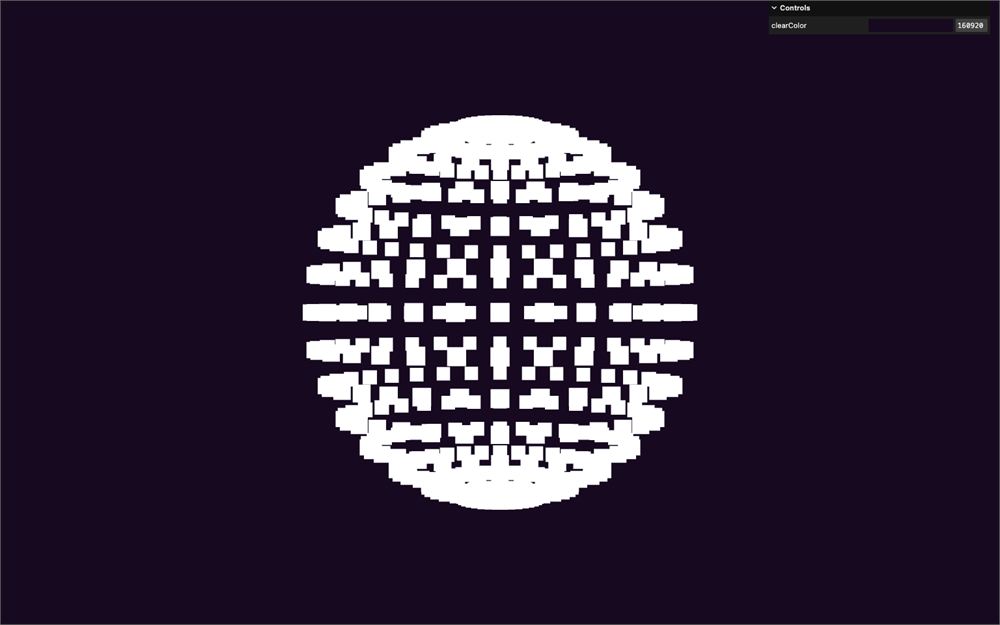
- 一个可调节的
clearColor - 一些模型都放在名为
models.glb的同一个文件中,你可以在static/文件夹里找到它们(你可以用Resources按钮下载原始的 Blender 文件) - 一个
GLTFLoader实例,并为其关联了一个DracoLoader实例 - 一个由粒子构成的球体,使用 ShaderMaterial
- 用于处理 GLSL 文件的
vite-plugin-glsl依赖 - 用于旋转视角的
OrbitControls - 依赖中的
gsap
粒子的大小已经在 vertex.glsl 中处理好了。我们使用一个 uSize uniform 从 JS 端控制它。然后会应用透视,最终大小与渲染高度相关,正如前面课程中所见。
另外注意,所有与粒子相关的内容都被设置为 particles 对象的属性,以保持条理清晰。
理论
思路是我们要向 vertex shader 发送两组位置:一组是初始形状,另一组是目标形状。对于初始形状,我们可以使用经典的 position attribute。对于目标形状,我们需要发送一个新的 attribute。我们称它为 aPositionTarget。
然后,我们发送一个 uniform,它是一个从 0 到 1 的 float。我们把它命名为 uProgress。我们将用这个 uProgress 在 position 和 aPositionTarget 之间进行混合(mix)。
从一个形状过渡到另一个形状,应该简单到只需为 uProgress 制作动画。
当然,我们会遇到一些困难,并在此基础上添加一些炫酷的效果。
图案
在着手处理形变之前,我们先来玩一玩,画一个图案来代替那些方块。
我们想在粒子的中心画一个亮点,并让这个点在到达粒子边缘之前逐渐淡出。其实我们在 Shader Patterns 那一课已经做过这件事,但让我们从头创建一遍:
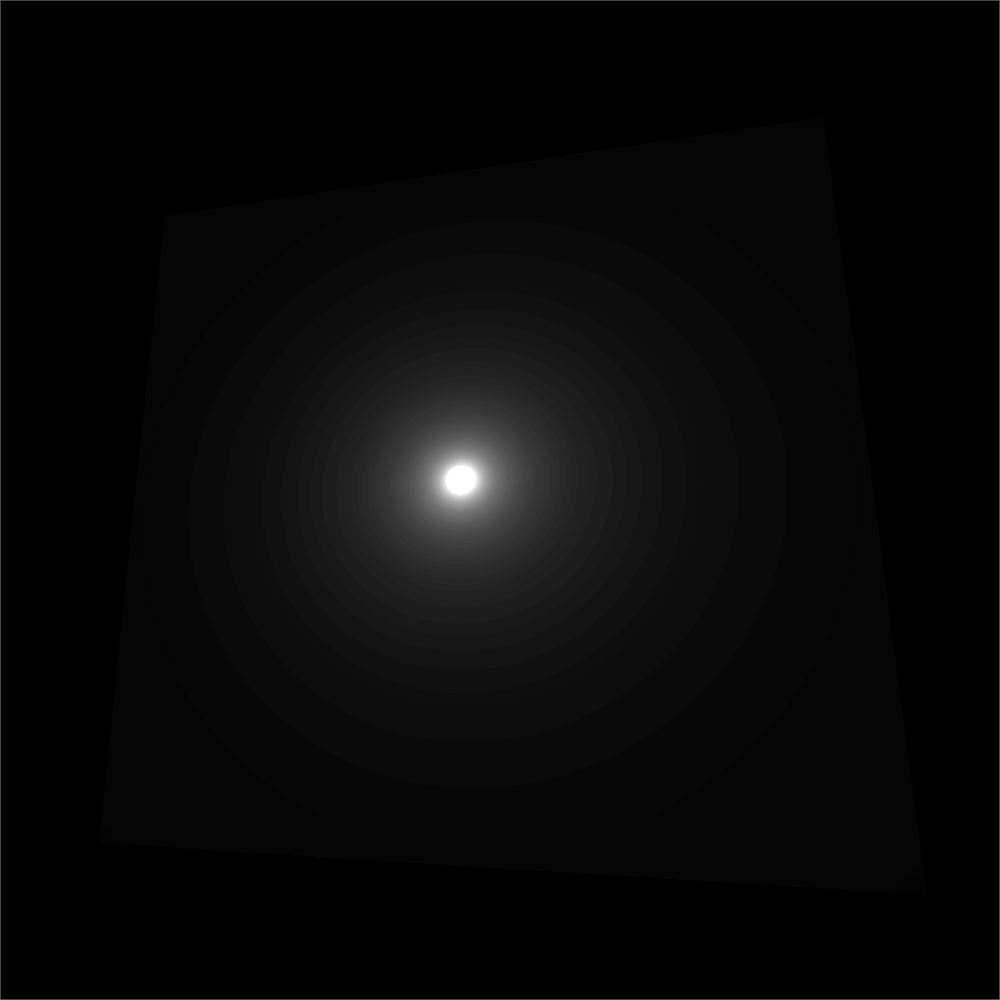
在 fragment.glsl 中,使用 gl_PointCoord 获取粒子的 UV,把它保存为 uv 并发送给 gl_FragColor,以确保它能正常工作:
void main()
{
    vec2 uv = gl_PointCoord;

    gl_FragColor = vec4(uv, 1.0, 1.0);
    // ...
}
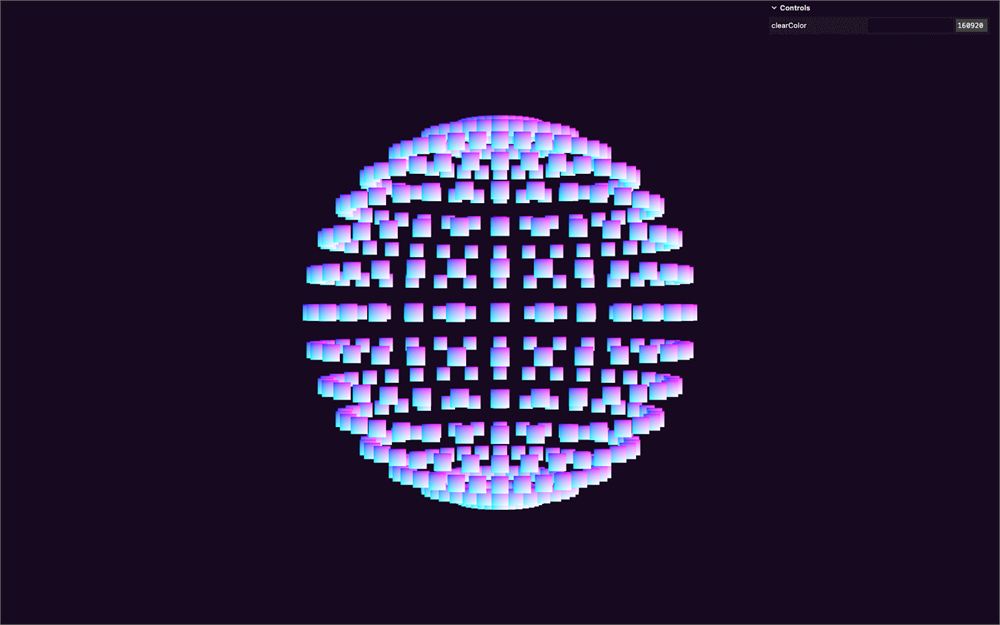
接下来,我们需要到中心的距离。我们将使用在前面某一课中见过的技巧,使用偏移 uv 的 length,而不是从 vec2(0.5) 出发的 distance,并将它发送给 gl_FragColor:
void main()
{
    vec2 uv = gl_PointCoord;
    float distanceToCenter = length(uv - 0.5);

    gl_FragColor = vec4(distanceToCenter, distanceToCenter, distanceToCenter, 1.0);
    // ...
}
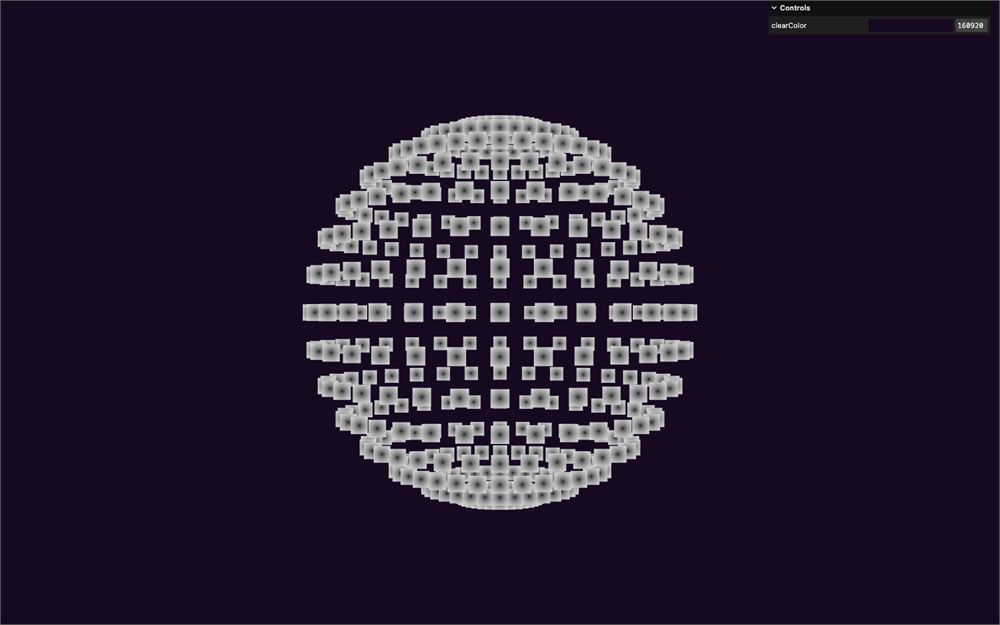
使用 distanceToCenter,我们可以计算出 alpha。
我们希望它一开始非常高,然后迅速骤降。我们可以使用小数除法的技巧。
思路是我们取一个小于 1 的数,然后用一个递增的值(在我们的例子中是 distanceToCenter)去除它:
创建一个 float alpha 变量,将 0.05 除以 distanceToCenter 赋值给它。把它发送给 gl_FragColor:
void main()
{
    // ...
    float alpha = 0.05 / distanceToCenter;

    gl_FragColor = vec4(alpha, alpha, alpha, 1.0);
    // ...
}
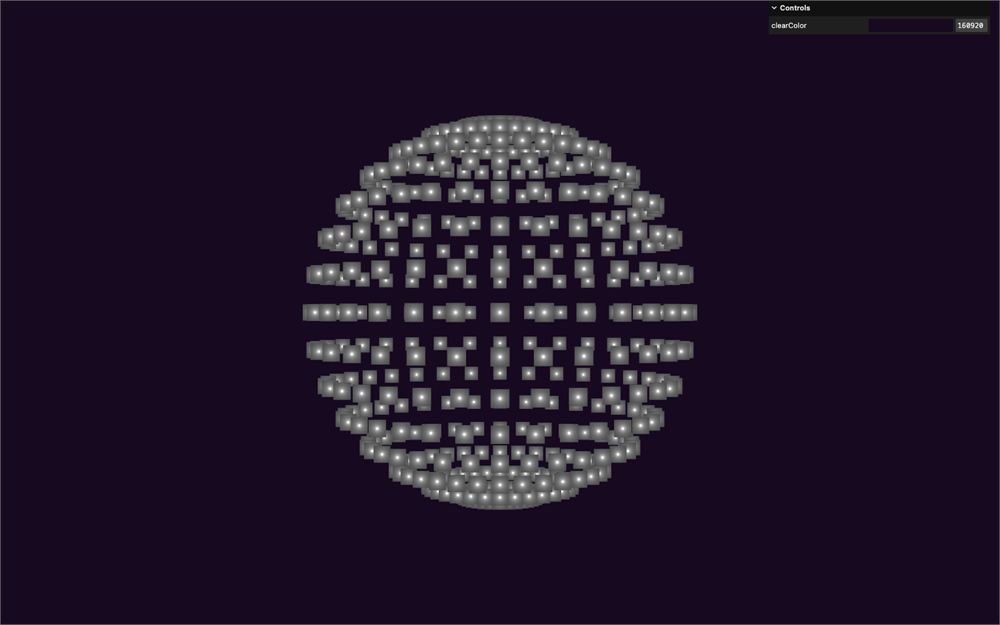
不错,但 alpha 在边缘处永远达不到 0.0。
技巧就在这里。从结果中减去你所选小数的两倍:
void main()
{
    // ...
    float alpha = 0.05 / distanceToCenter - 0.1;

    // ...
}
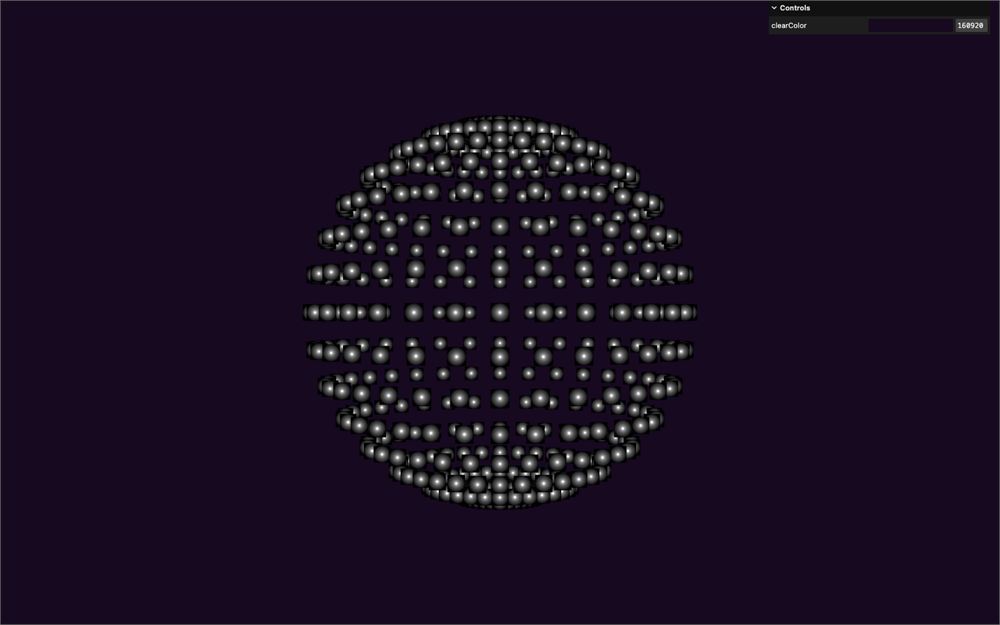
我们需要把这个数乘以二,因为粒子的边缘在 0.5 处就到达了,而不是 1.0,这意味着我们需要该值以两倍的速度下降。
如果你不理解这个公式也没关系,只要你知道如何应用它以及它看起来是什么效果就行。
把 gl_FragColor 恢复为白色,并将 alpha 用在第四个值上:
void main()
{
    vec2 uv = gl_PointCoord;
    float distanceToCenter = length(uv - 0.5);
    float alpha = 0.05 / distanceToCenter - 0.1;

    gl_FragColor = vec4(1.0, 1.0, 1.0, alpha);
    #include <tonemapping_fragment>
    #include <colorspace_fragment>
}
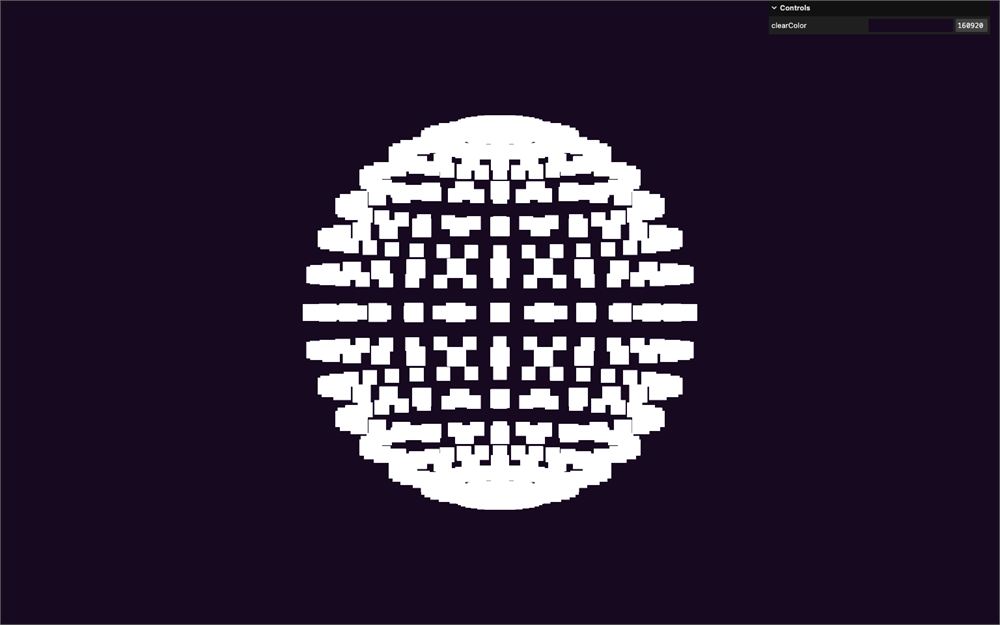
它没有生效,因为我们没有把 material 上的 transparent 设为 true,但与其这么做,我们将把 blending 设为 AdditiveBlending,让粒子的亮度相互融合:
particles.material = new THREE.ShaderMaterial({
    // ...
    blending: THREE.AdditiveBlending
})
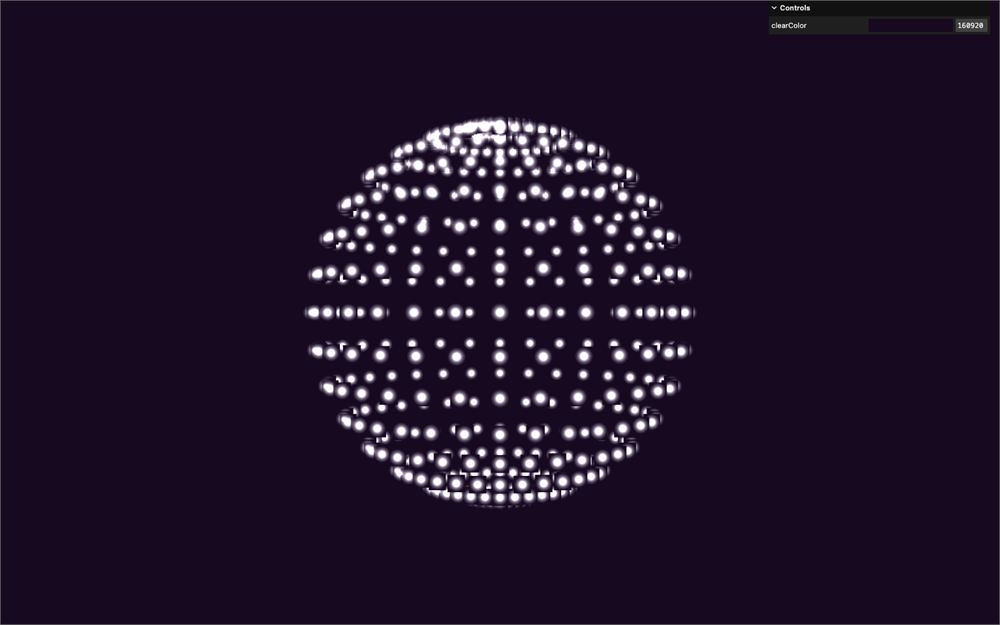
接下来,把 depthWrite 设为 false 以防止遮挡问题:
particles.material = new THREE.ShaderMaterial({
    // ...
    depthWrite: false
})
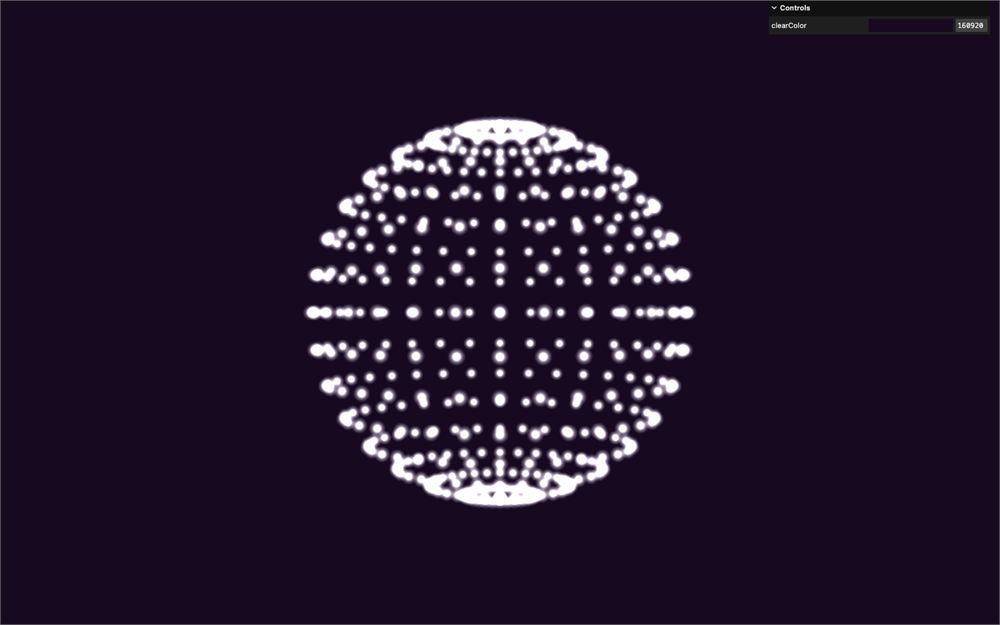
注意到有什么问题了吗?
粒子太亮了,就好像有许多粒子叠在了一起——而这正是实际发生的情况。
正如我们在之前课程中所见,只要 Three.js 可以,它就会复用顶点来构成多个三角形,这就是我们所说的 index(索引)。
尽管我们绘制的是粒子、并未使用三角形,WebGL 仍会使用 index,在网格的情况下会导致同一个位置最多出现 6 个粒子:
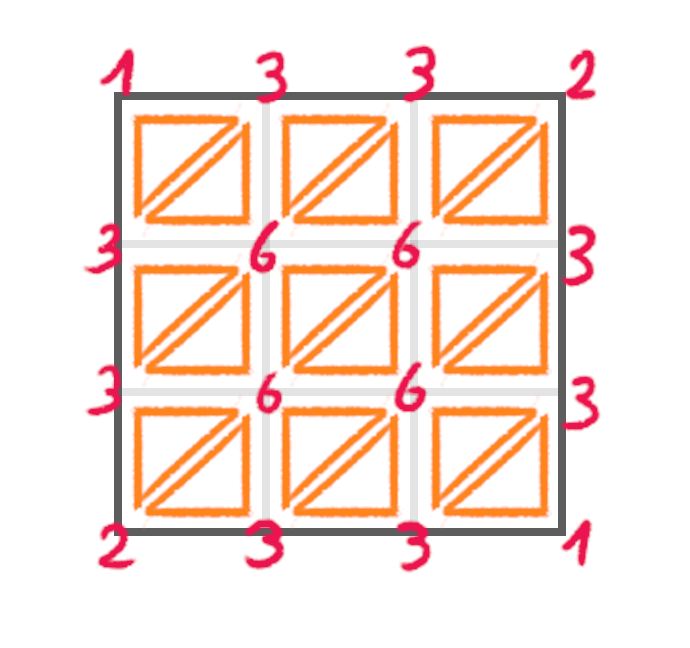
要修复这个问题,用 geometry 上的 setIndex(null) 移除 index:
// Geometry
particles.geometry = new THREE.SphereGeometry(3)
particles.geometry.setIndex(null)
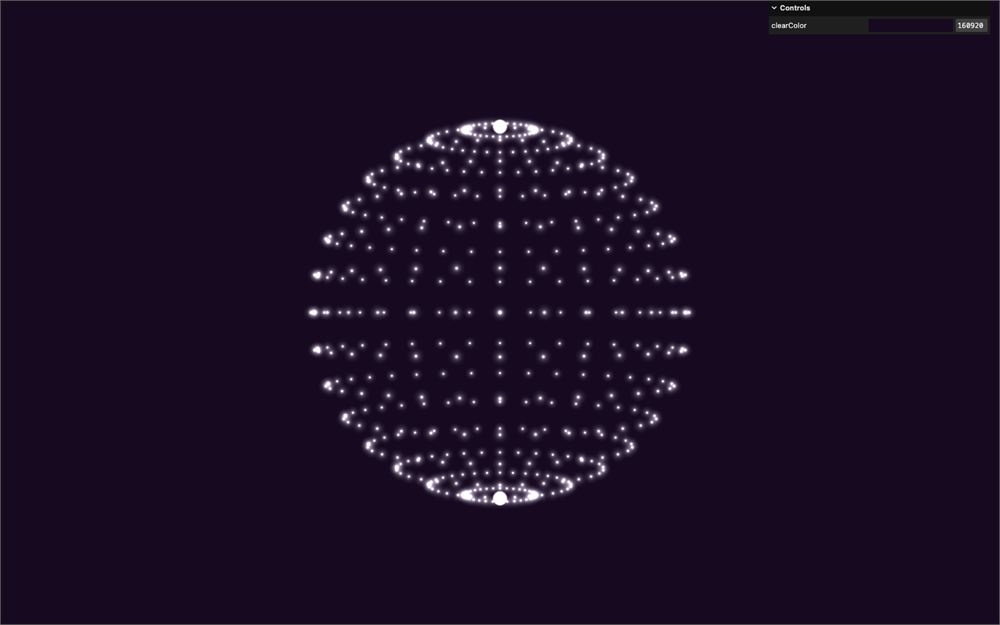
等我们使用模型之后,这实际上就不再是问题了,但这正是一个练习的好机会。
加载模型
我们将使用的模型是在 Blender 中创建的。
它们包括一个球体、Suzanne、一段文字和一个圆环。
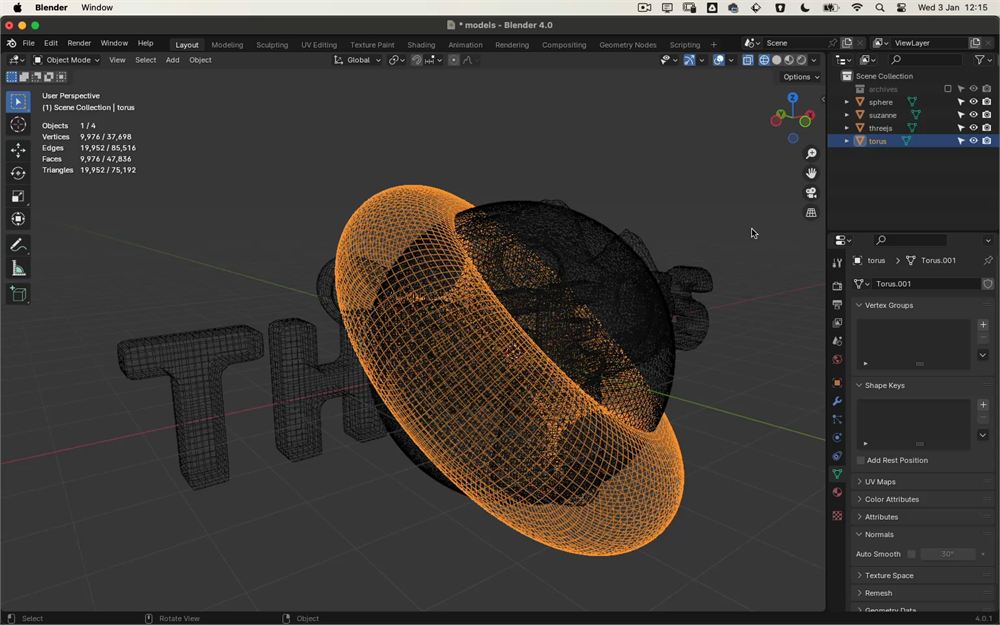
这些模型经过了细分,使它们的顶点数量大致相同(约 10,000 个),但没有哪两个是完全相等的。不过我们稍后会处理这个问题。
这些对象经过了平滑处理。这样做会大幅减少模型中包含的数据量,因为平滑后的 geometry 会变成带索引的(indexed)geometry,意味着每个顶点都是唯一的。
但我们不是说过不想要 index 吗?是的,不过我们只会从模型中提取顶点,而不提取 index,所以这并不是问题。
我们已经有一个 GLTFLoader 实例,并为其设置了 DRACOLoader 实例。让我们加载位于 static/models.glb 中的模型:
gltfLoader.load('./models.glb', (gltf) =>
{
    console.log(gltf)
})
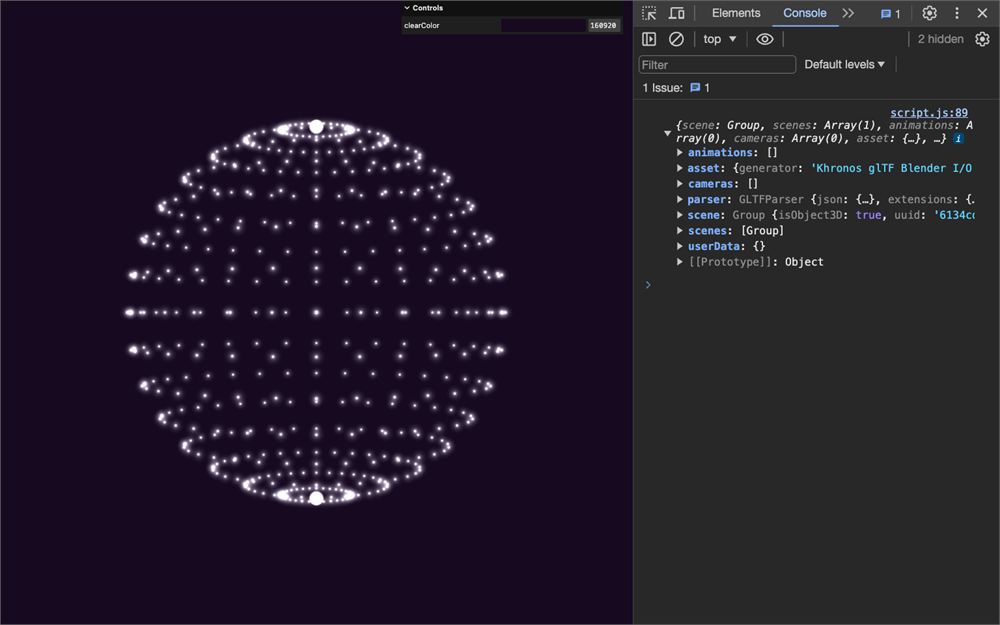
由于我们需要这些模型来创建粒子,所以让我们把所有与粒子相关的代码都放进 load() 的回调函数中:
gltfLoader.load('./models.glb', (gltf) =>
{
    const particles = {}

    // Geometry
    particles.geometry = new THREE.SphereGeometry(3)
    particles.geometry.setIndex(null)

    // Material
    particles.material = new THREE.ShaderMaterial({
        vertexShader: particlesVertexShader,
        fragmentShader: particlesFragmentShader,
        uniforms:
        {
            uSize: new THREE.Uniform(0.4),
            uResolution: new THREE.Uniform(new THREE.Vector2(sizes.width * sizes.pixelRatio, sizes.height * sizes.pixelRatio))
        },
        blending: THREE.AdditiveBlending,
        depthWrite: false
    })

    // Points
    particles.points = new THREE.Points(particles.geometry, particles.material)
    scene.add(particles.points)
})
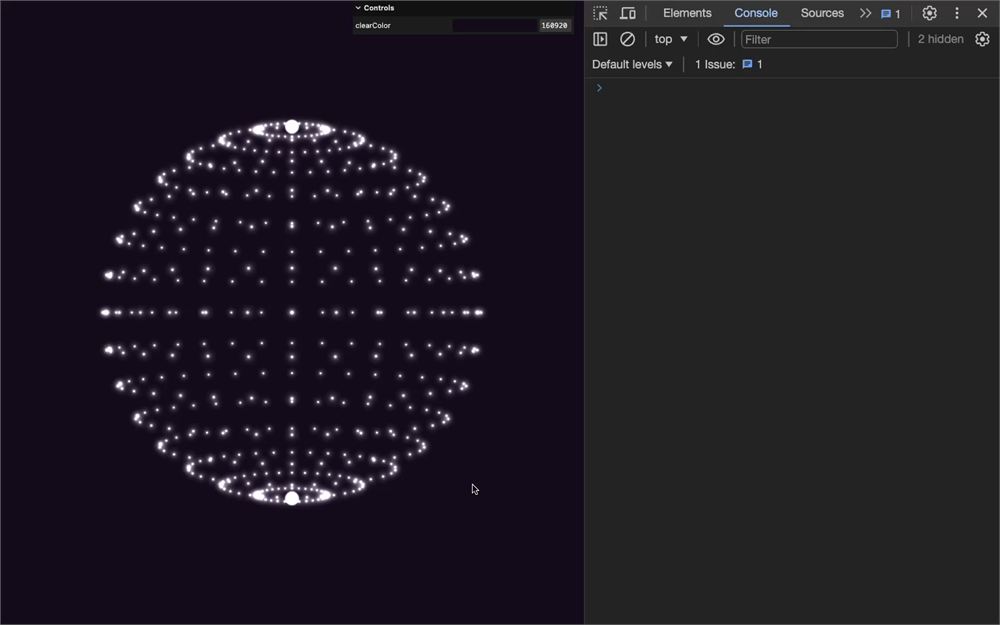
它看起来没问题,但如果你调整窗口大小,就会得到一个错误:
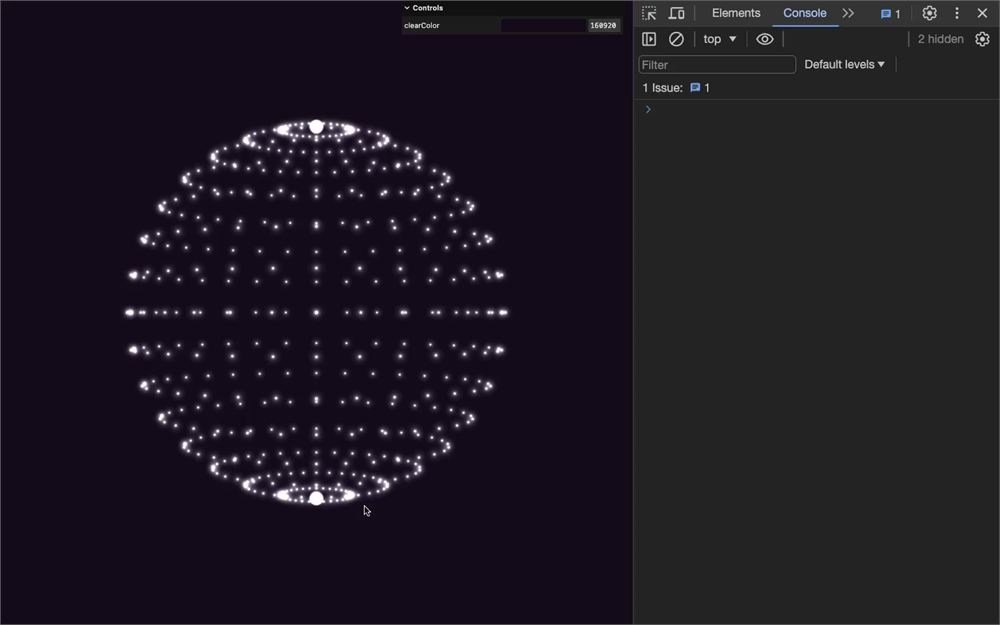
这是因为我们在 resize 回调中更新 uResolution,但 particles 对象是在回调函数内部创建的,因此它只存在于那里。
要修复这一点,我们用 let 在外部把它创建为 null,然后在回调内部把它更新为一个对象:
let particles = null

gltfLoader.load('./models.glb', (gltf) =>
{
    particles = {}

    // ...
})
现在我们可以在回调外部访问它了,并且可以在尝试更新任何内容之前,用一个 if 语句来测试 particles 中是否有内容:
window.addEventListener('resize', () =>
{
    // ...

    // Materials
    if(particles)
        particles.material.uniforms.uResolution.value.set(sizes.width * sizes.pixelRatio, sizes.height * sizes.pixelRatio)

    // ...
})
提取 geometry 的位置
回到我们的回调函数,我们想要从已加载模型的对象中提取 geometry。更具体地说,我们需要 position attribute,我们可以使用数组上可用的 map 方法。
map 方法会遍历数组的每一项,并返回我们在传给它的函数中所返回的内容。
在 gltf.scene.children 上使用 map,并向它传入一个带有 child 参数的函数,以及对该 child 执行 console.log():
gltfLoader.load('./models.glb', (gltf) =>
{
    particles = {}

    // Positions
    gltf.scene.children.map((child) =>
    {
        console.log(child)
    })

    // ...
})
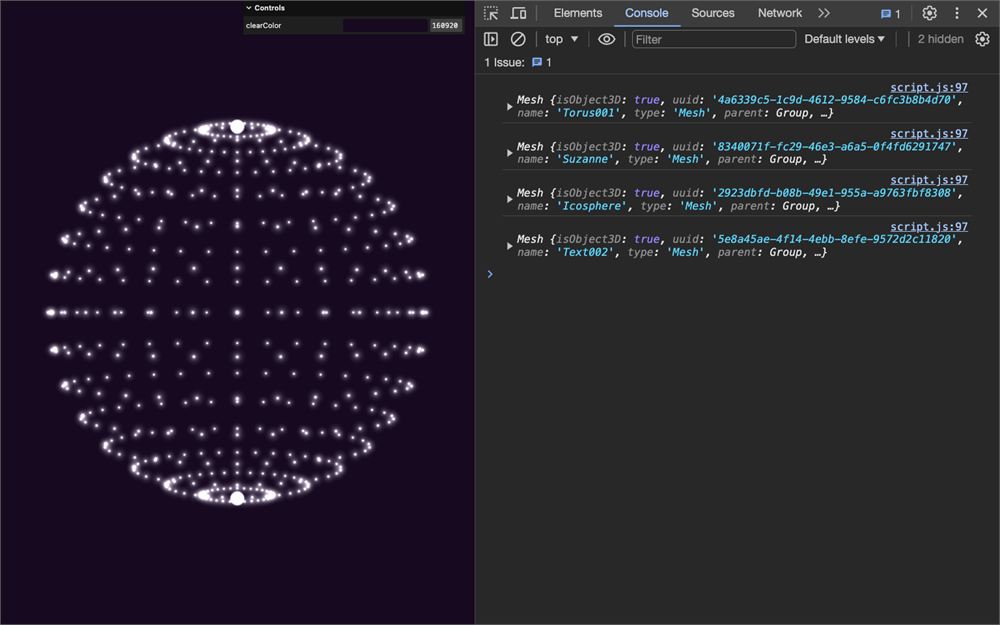
如你所见,该函数会针对 gltf.scene.children 数组的每一项被调用。
在我们的例子中,我们需要 position attribute,它可以在 child.geometry.attributes.position 属性中找到:
gltfLoader.load('./models.glb', (gltf) =>
{
    particles = {}

    // Positions
    gltf.scene.children.map((child) =>
    {
        console.log(child.geometry.attributes.position)
    })

    // ...
})
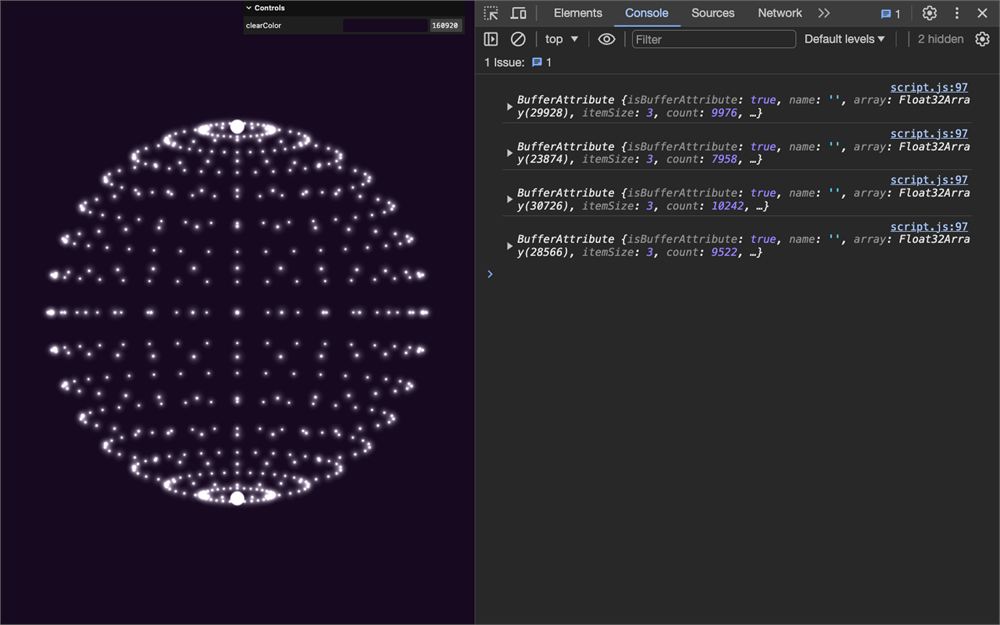
既然找到了我们想要的东西,我们就需要把每一个都提取出来并全部保存。
把 map 的结果赋值给一个 positions 变量,并且不执行 console.log() 而是 return 出 child.geometry.attributes.position:
gltfLoader.load('./models.glb', (gltf) =>
{
    particles = {}

    // Positions
    const positions = gltf.scene.children.map((child) =>
    {
        return child.geometry.attributes.position
    })

    // ...
})
你可以 console.log(positions) 看看里面有什么:
gltfLoader.load('./models.glb', (gltf) =>
{
    particles = {}

    // Positions
    const positions = gltf.scene.children.map((child) =>
    {
        return child.geometry.attributes.position
    })
    console.log(positions)

    // ...
})
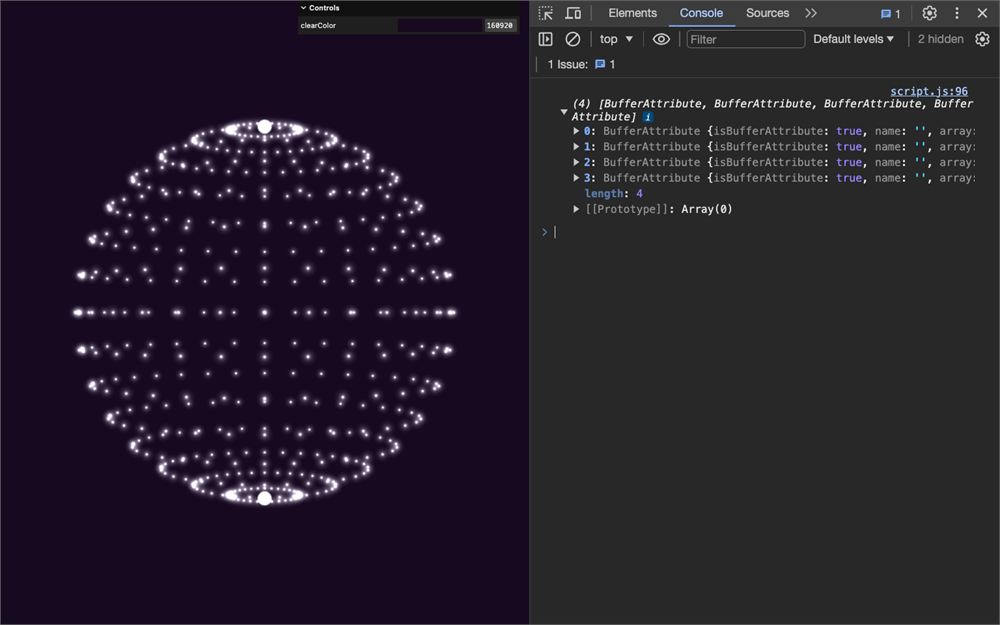
我们得到一个数组,包含从 gltf.scene.children 中提取的所有 position attributes。
而且由于我们使用的是箭头函数,我们可以这样写以获得相同的结果:
gltfLoader.load('./models.glb', (gltf) =>
{
    particles = {}

    // Positions
    const positions = gltf.scene.children.map(child => child.geometry.attributes.position)

    // ...
})
统一位置
positions 数组包含这 4 个对象的顶点,但它们的大小都不完全相同。
我们需要把它们统一起来,我们将给较小的那些补上数值,使它们全都达到最大的那个的大小。
首先,我们需要确定顶点数量的最大值。
创建一个 maxCount 属性并将其设为 0:
gltfLoader.load('./models.glb', (gltf) =>
{
    particles = {}

    // Positions
    const positions = gltf.scene.children.map(child => child.geometry.attributes.position)

    particles.maxCount = 0

    // ...
})
用 for(… of …) 遍历 positions 数组,用 count 属性比较顶点数量,如果它大于 particles.maxCount,就相应地更新 particles.maxCount:
gltfLoader.load('./models.glb', (gltf) =>
{
    particles = {}

    // Positions
    const positions = gltf.scene.children.map(child => child.geometry.attributes.position)

    particles.maxCount = 0
    for(const position of positions)
    {
        if(position.count > particles.maxCount)
            particles.maxCount = position.count
    }

    // ...
})
现在我们知道了 positions 的最大大小,就需要更新它们。但请记住,attribute 是由 Float32Array 构成的,而这种类型的数组无法改变其长度。
我们需要创建一个全新的、大小正确的 Float32Array。
在计算出 maxCount 之后,创建一个空数组 particles.position,并再次遍历 positions:
gltfLoader.load('./models.glb', (gltf) =>
{
    particles = {}

    // Positions
    // ...

    particles.positions = []
    for(const position of positions)
    {
    }

    // ...
}
particles.positions 将包含全部 4 个新的 positions attributes:
要非常注意你做事的顺序。是的,我们又对 positions 做了一次 for(… of …),但它必须是单独的一个循环,因为我们需要先计算出 maxCount。
从 position 中取出原始的顶点数组并保存为 originalArray:
gltfLoader.load('./models.glb', (gltf) =>
{
    // ...
    for(const position of positions)
    {
        const originalArray = position.array
    }

    // ...
}
创建一个大小为 maxCount 乘以 3 的 Float32Array(因为 x、y 和 z),并保存为 newArray:
gltfLoader.load('./models.glb', (gltf) =>
{
    // ...
    for(const position of positions)
    {
        const originalArray = position.array
        const newArray = new Float32Array(particles.maxCount * 3)
    }

    // ...
}
和往常一样,我们在编码方式上非常明确。我们本可以用很不同的方式来做,但在学习的过程中保持清晰是很重要的。
仍然在 for(… of …) 中,从 0 循环到 particles.maxCount,使用经典的 for() 并创建一个等于 i * 3 的 i3 变量:
gltfLoader.load('./models.glb', (gltf) =>
{
    // ...
    for(const position of positions)
    {
        const originalArray = position.array
        const newArray = new Float32Array(particles.maxCount * 3)

        for(let i = 0; i < particles.maxCount; i++)
        {
            const i3 = i * 3
        }
    }

    // ...
}
我们准备好填充数组了。我们在 originalArray 中有原始顶点,而我们需要填充 newArray。
在 for() 中,只要 i3 小于 originalArray.length,就从 originalArray 中取值并放进 newArray:
gltfLoader.load('./models.glb', (gltf) =>
{
    // ...
    for(const position of positions)
    {
        const originalArray = position.array
        const newArray = new Float32Array(particles.maxCount * 3)

        for(let i = 0; i < particles.maxCount; i++)
        {
            const i3 = i * 3

            if(i3 < originalArray.length)
            {
                newArray[i3 + 0] = originalArray[i3 + 0]
                newArray[i3 + 1] = originalArray[i3 + 1]
                newArray[i3 + 2] = originalArray[i3 + 2]
            }
        }
    }

    // ...
}
否则,我们就用一堆 0 来填充数组:
gltfLoader.load('./models.glb', (gltf) =>
{
    // ...
    for(const position of positions)
    {
        const originalArray = position.array
        const newArray = new Float32Array(particles.maxCount * 3)

        for(let i = 0; i < particles.maxCount; i++)
        {
            const i3 = i * 3

            if(i3 < originalArray.length)
            {
                newArray[i3 + 0] = originalArray[i3 + 0]
                newArray[i3 + 1] = originalArray[i3 + 1]
                newArray[i3 + 2] = originalArray[i3 + 2]
            }
            else
            {
                newArray[i3 + 0] = 0
                newArray[i3 + 1] = 0
                newArray[i3 + 2] = 0
            }
        }
    }

    // ...
}
稍后我们会从 originalArray 中随机取值,但我们已经有一段时间在看不到任何效果的情况下写代码了,所以让我们保持简单。
仍然在 for(… of …) 循环中(不是那个经典的 for()),使用 newArray 创建一个 Float32BufferAttribute,把 itemSize 设为 3 并把它 push() 进 particles.positions 数组:
gltfLoader.load('./models.glb', (gltf) =>
{
    // ...
    for(const position of positions)
    {
        // ...

        particles.positions.push(new THREE.Float32BufferAttribute(newArray, 3))
    }

    // ...
}
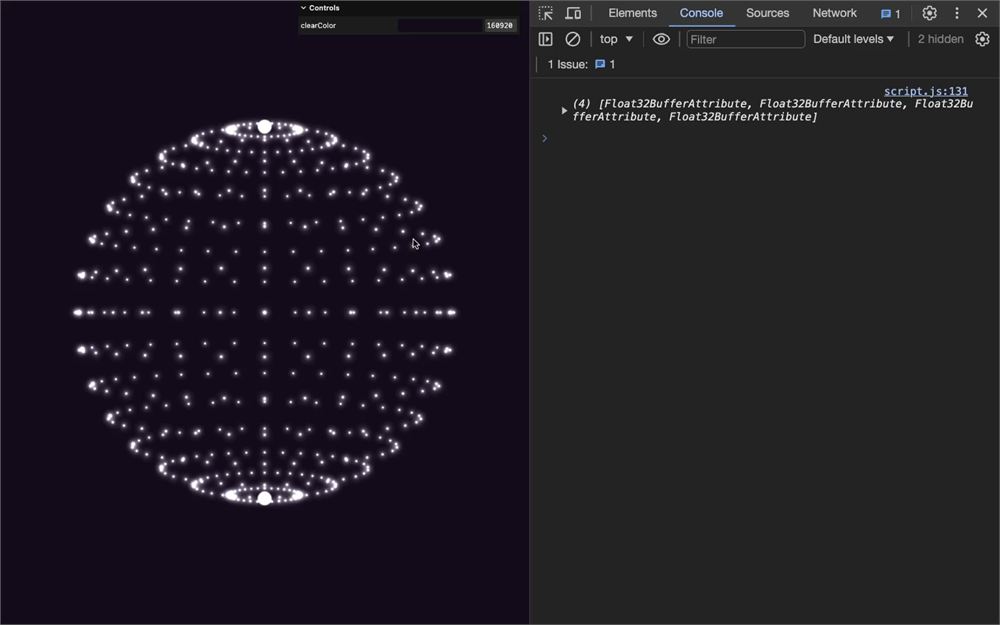
你可以 console.log(particles.positions) 来检查所有数组是否大小相同,并且末尾是否被 0 填充(除了最大的那个):
gltfLoader.load('./models.glb', (gltf) =>
{
    // ...
    for(const position of positions)
    {
        // ...
    }

    console.log(particles.positions)

    // ...
}
我们已经有一段时间在看不到任何效果的情况下写代码了。幸运的是,我们终于可以测试这些数组了。
在 Geometry 部分,不用 SphereGeometry,而是创建一个 BufferGeometry:
gltfLoader.load('./models.glb', (gltf) =>
{
    // ...

    // Geometry
    particles.geometry = new THREE.BufferGeometry()

    // ...
})
我们什么也没得到,因为 geometry 是空的。
使用 setAttribute() 方法设置一个 'position' attribute,并使用我们准备好的任意一个 particles.positions。我将使用 Suzanne(particles.positions[1]):
gltfLoader.load('./models.glb', (gltf) =>
{
    // ...

    // Geometry
    particles.geometry = new THREE.BufferGeometry()
    particles.geometry.setAttribute('position', particles.positions[1])

    // ...
})
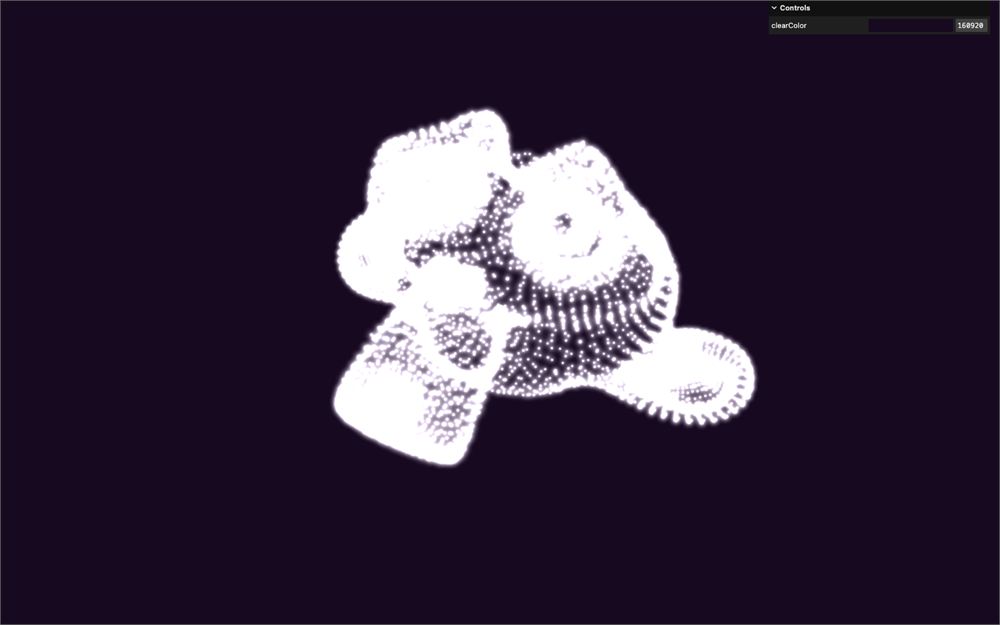
终于生效了。
如前所述,我们不再需要 setIndex(null),因为顶点是唯一的,而且 BufferGeometry 默认没有 index。
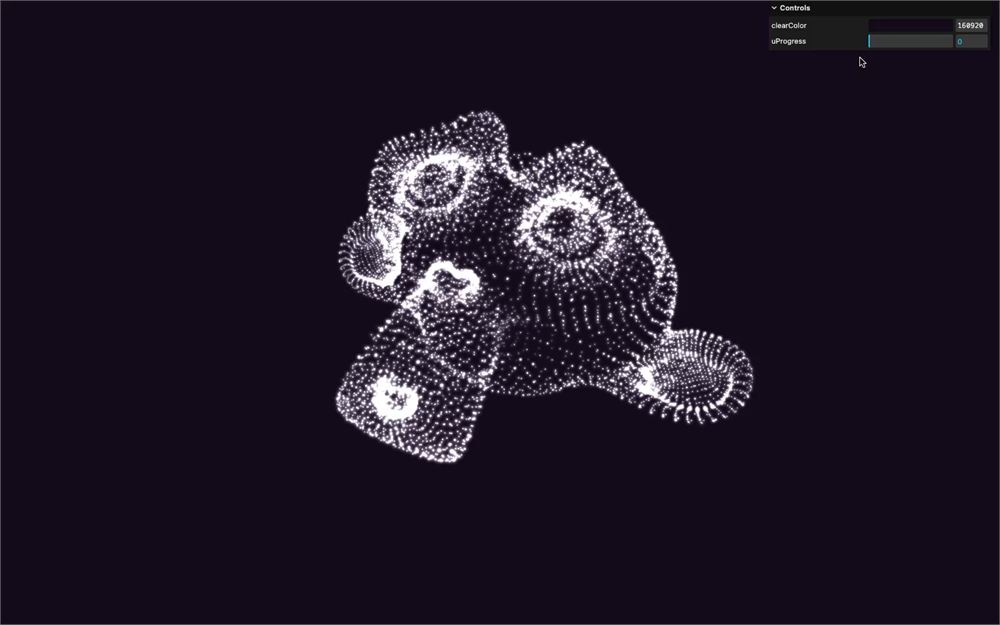
如果你旋转视角,会注意到中心处那个大点:
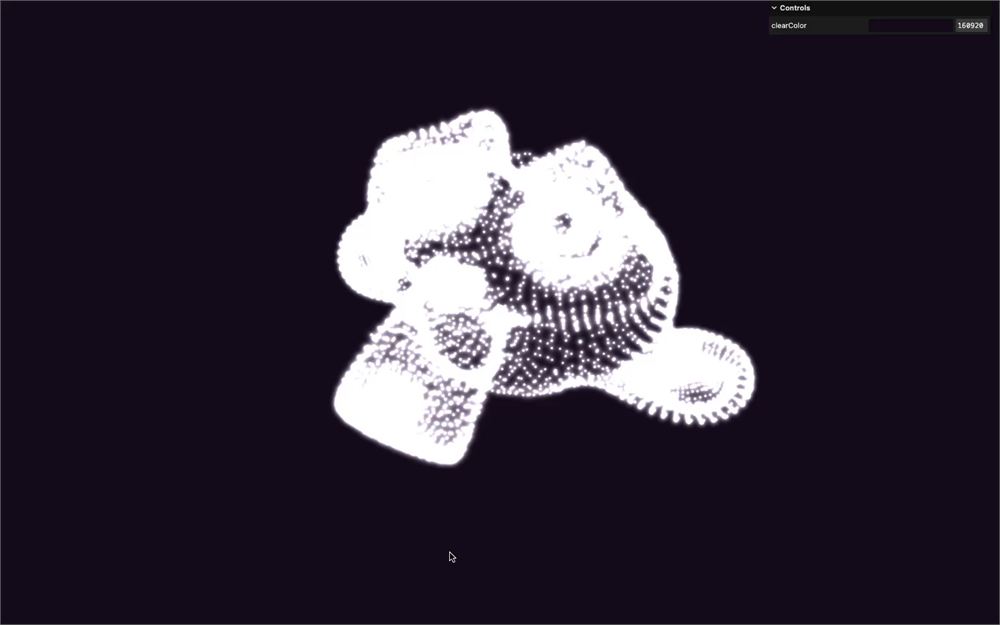
这个点是由我们为填充数组而添加的、位置在 0, 0, 0 的所有顶点组成的。
回到填充数组的那个 for():与其把填充值设为 0,我们将从 originalArray 中随机选取一个顶点。
首先,创建一个 randomIndex 变量,它将是 position.count 乘以 Math.random(),再用 Math.floor() 向下取整,这样我们就能得到 originalArray 的随机索引:
gltfLoader.load('./models.glb', (gltf) =>
{
    // ...
    for(const position of positions)
    {
        // ...

        for(let i = 0; i < particles.maxCount; i++)
        {
            // ...
            else
            {
                const randomIndex = Math.floor(position.count * Math.random())
                newArray[i3 + 0] = 0
                newArray[i3 + 1] = 0
                newArray[i3 + 2] = 0
            }
        }
    }

    // ...
}
我们还需要把它乘以 3,因为 originalArray 中的值是按 3 个一组排列的(x、y 和 z):
gltfLoader.load('./models.glb', (gltf) =>
{
    // ...
    for(const position of positions)
    {
        // ...

        for(let i = 0; i < particles.maxCount; i++)
        {
            // ...
            else
            {
                const randomIndex = Math.floor(position.count * Math.random()) * 3
                newArray[i3 + 0] = 0
                newArray[i3 + 1] = 0
                newArray[i3 + 2] = 0
            }
        }
    }

    // ...
}
现在用 randomIndex 从 originalArray 中取值:
gltfLoader.load('./models.glb', (gltf) =>
{
    // ...
    for(const position of positions)
    {
        // ...

        for(let i = 0; i < particles.maxCount; i++)
        {
            // ...
            else
            {
                const randomIndex = Math.floor(position.count * Math.random()) * 3
                newArray[i3 + 0] = originalArray[randomIndex + 0]
                newArray[i3 + 1] = originalArray[randomIndex + 1]
                newArray[i3 + 2] = originalArray[randomIndex + 2]
            }
        }
    }

    // ...
}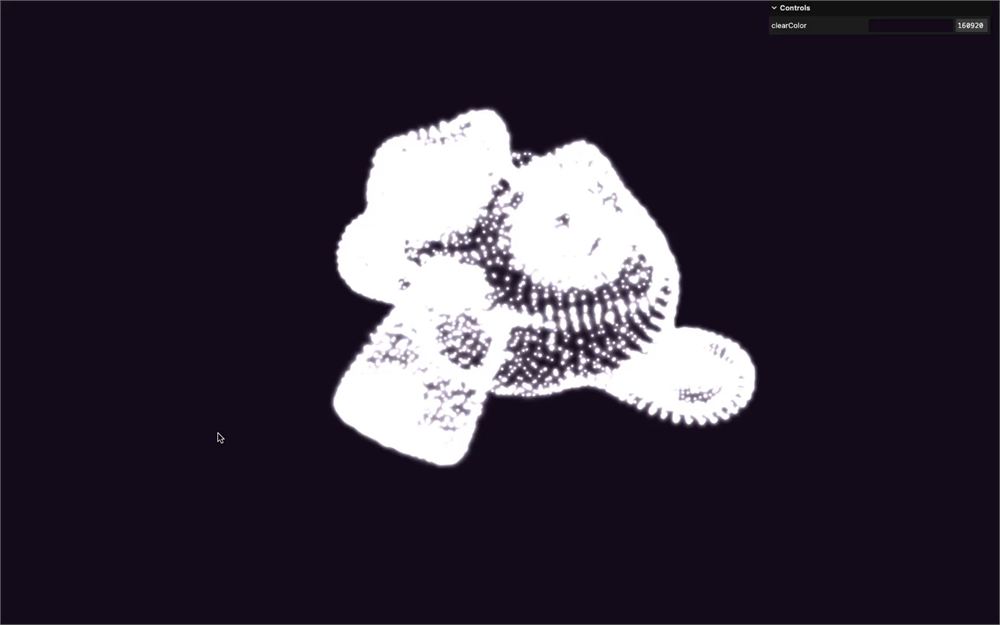
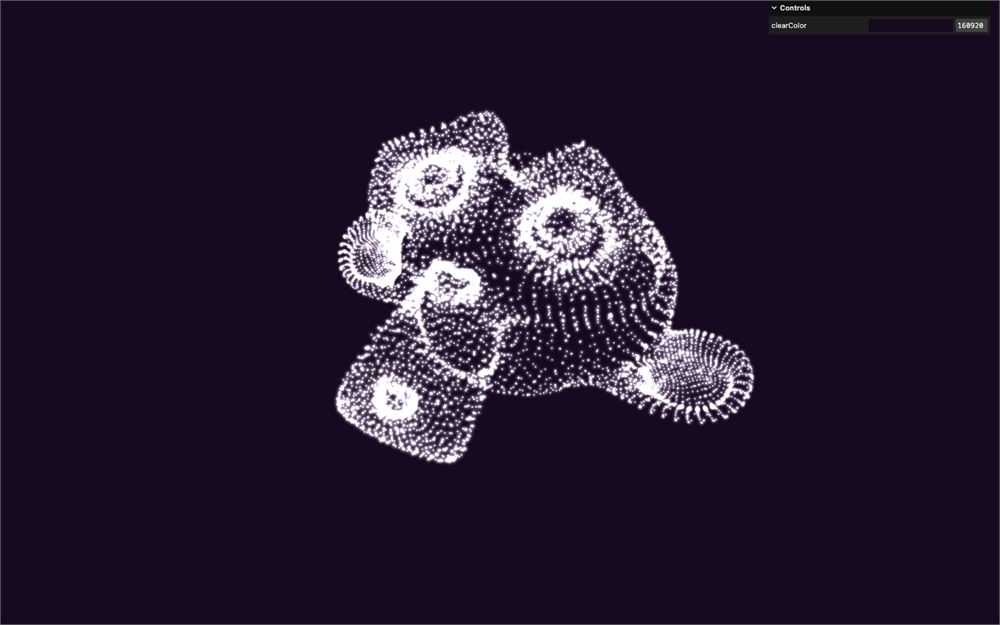
现在,中间的粒子消失了,被填充的顶点是从 originalArray 中随机获取的。有些粒子看起来更亮,那是因为那里有多个粒子重叠——而这一次,是有意为之的。
和往常一样,我们做的每一件事都有更简短的写法,但我们希望让事情尽可能地简单易懂。
让我们把粒子稍微调小一些,以便欣赏接下来的部分。
gltfLoader.load('./models.glb', (gltf) =>
{
    // ...
    particles.material = new THREE.ShaderMaterial({
        // ...
        uniforms:
        {
            uSize: new THREE.Uniform(0.2),
            // ...
        },
        // ...
    })

    // ...
})
混合位置
让我们开始有趣的部分,让粒子从一个形状移动到另一个形状。
为此,我们需要在 shader 中同时拥有两组位置。
像我们添加 'position' 那样添加一个 'aPositionTarget',但使用 particles.positions 中不同的项(试试 particles.positions[3]):
gltfLoader.load('./models.glb', (gltf) =>
{
    // ...

    // Geometry
    particles.geometry = new THREE.BufferGeometry()
    particles.geometry.setAttribute('position', particles.positions[1])
    particles.geometry.setAttribute('aPositionTarget', particles.positions[3])

    // ...
})
与 position attribute 不同,我们需要在 vertex.glsl 中手动声明它:
attribute vec3 aPositionTarget;在 main() 的开头,创建一个设为 0.5 的 float progress 变量,以及一个根据 progress 在 position 和 aPositionTarget 之间混合的 vec3 mixedPosition 变量:
void main()
{
    // Mixed position
    float progress = 0.5;
    vec3 mixedPosition = mix(position, aPositionTarget, progress);

    // ...
}
把 mixedPosition 发送给 modelPosition,而不是 position:
void main()
{
    // ...

    // Final position
    vec4 modelPosition = modelMatrix * vec4(mixedPosition, 1.0);
    // ...
}
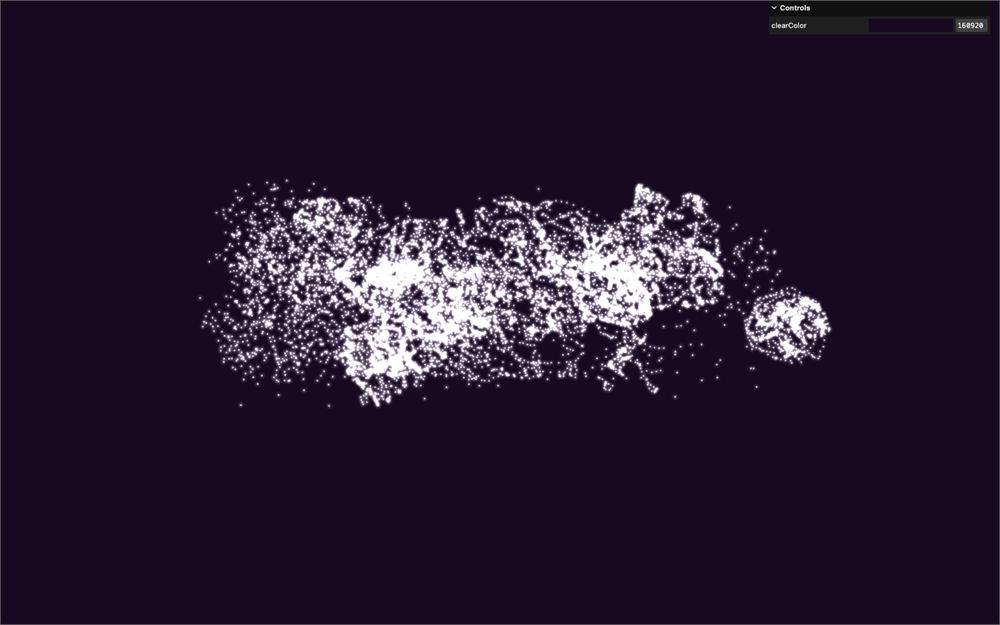
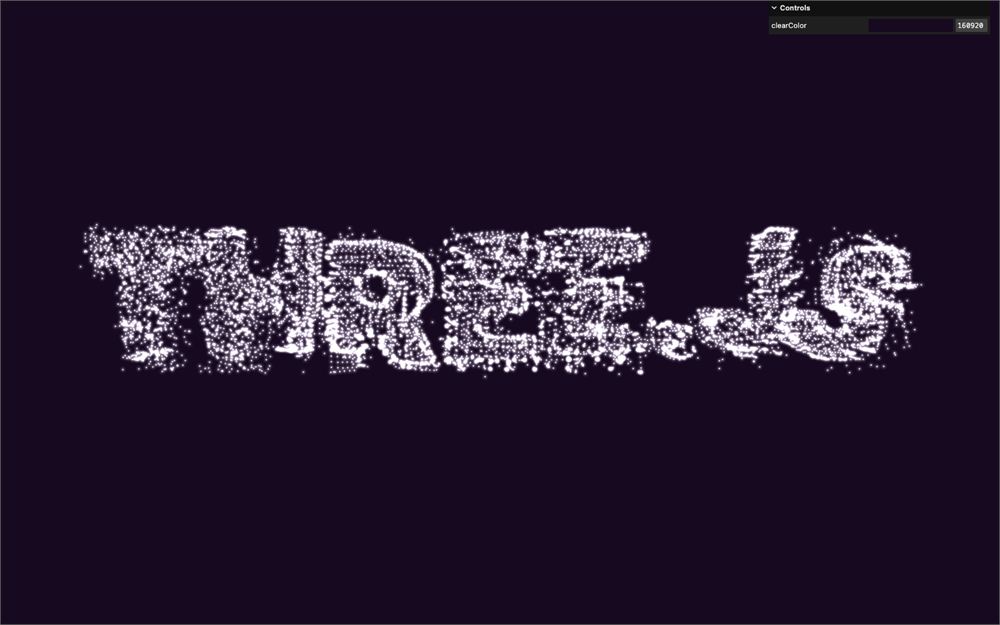
你所看到的是 Suzanne 和 THREE.JS 文字之间的完美混合。
试试不同的 progress 值,你就会明白。
想一想把 progress 设为 0.1 的结果:
void main()
{
    float progress = 0.1;
    // ...
}
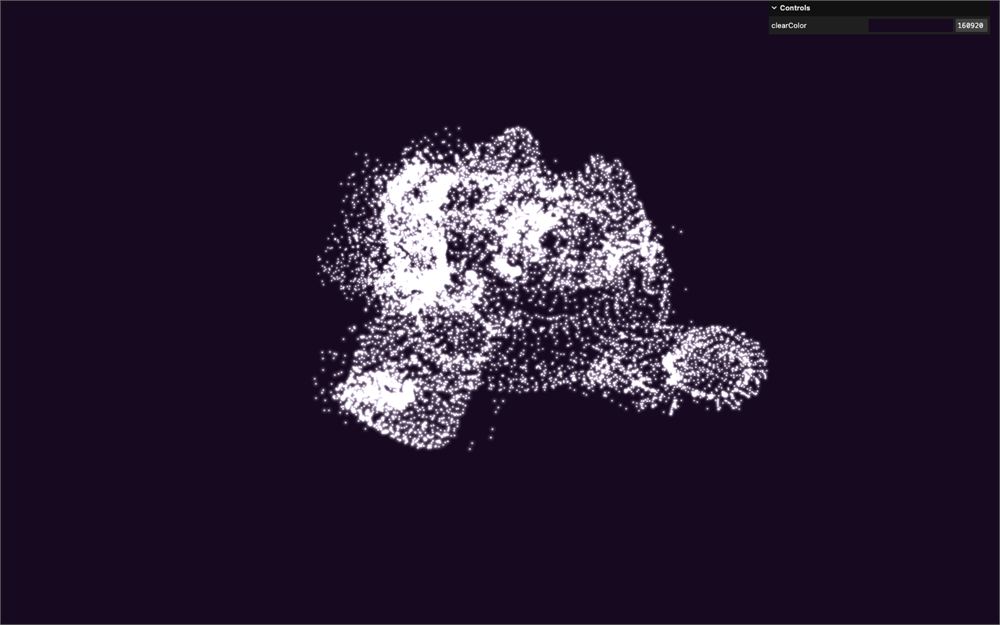
现在把 progress 改成 0.9:
void main()
{
    float progress = 0.9;
    // ...
}
Uniform
这很棒,但如果我们必须手动修改 progress,那也走不了多远。
我们将使用一个 uniform,并从 JS 端为这个 uniform 制作动画。
使用 Uniform 类创建一个 uProgress uniform 并将其设为 0:
gltfLoader.load('./models.glb', (gltf) =>
{
    // ...

    particles.material = new THREE.ShaderMaterial({
        // ...
        uniforms:
        {
            // ...
            uProgress: new THREE.Uniform(0)
        },
        // ...
    })

    // ...
})
在 vertex.glsl 中取回它并赋值给 progress:
// ...
uniform float uProgress;

// ...

void main()
{
    // Mixed position
    float progress = uProgress;
    // ...
}
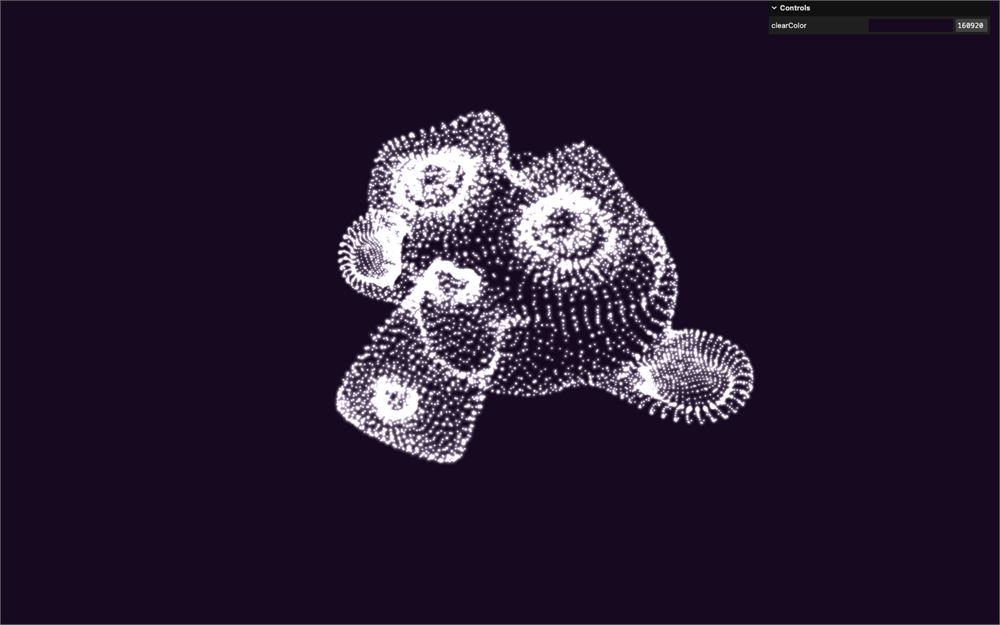
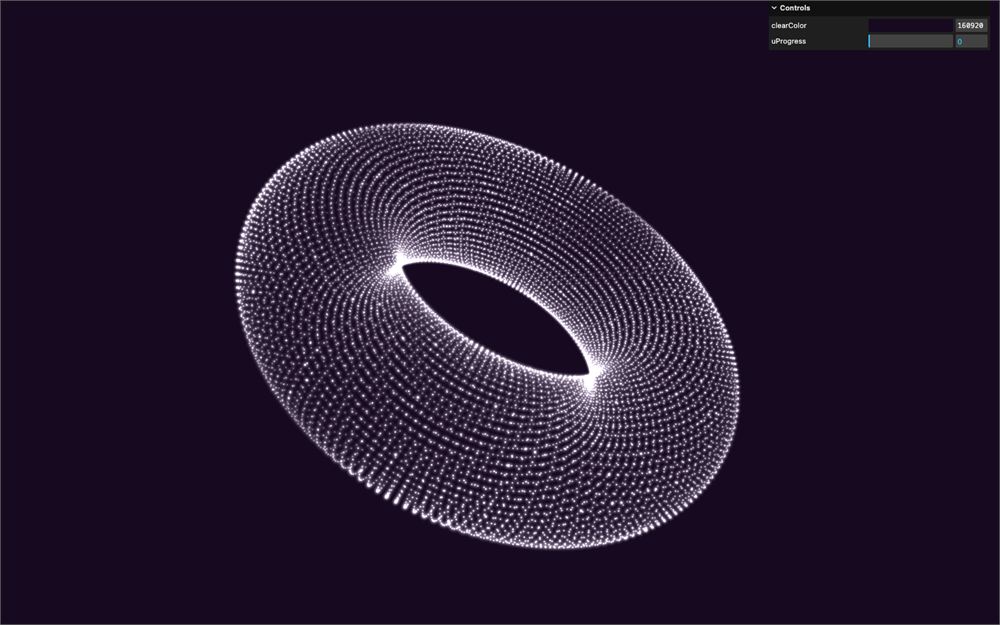
我们得到 Suzanne,因为 uProgress 处于 0。
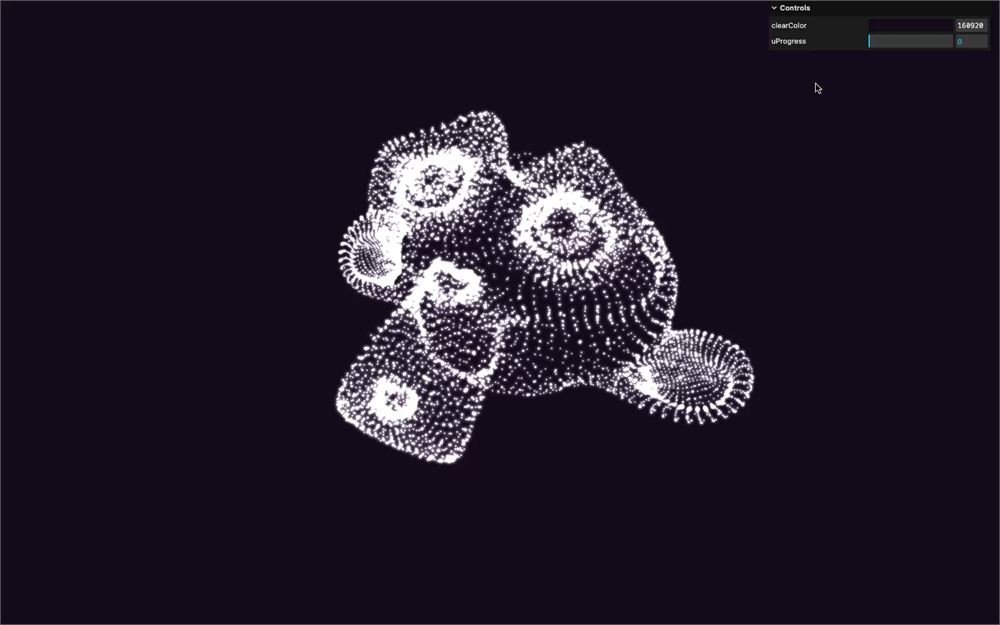
最后,uProgress 会被做成动画,但让我们先玩一玩,为它添加一个调节项:
gltfLoader.load('./models.glb', (gltf) =>
{
    // ...

    // Tweaks
    gui.add(particles.material.uniforms.uProgress, 'value').min(0).max(1).step(0.001).name('uProgress')
})
更好的过渡
我们的过渡已经生效了,但所有粒子都在同一时刻开始,以线性速度前往各自的目的地,并在同一时刻到达。太逊了。
为了解决这一点,我们将让它们在不同的时刻开始,并在此过程中让动画缓慢起步、在中间加速、到达时减速。
为了控制它们开始前的延迟,我们将使用 Perlin Noise,让它感觉像是模型的各个部分在分离。
其实这一次,我们将使用 Simplex Noise 而不是 Perlin Noise。它们非常相似,只是 Simplex Noise 看起来更自然、不那么网格化,而且性能更好(尤其是在更高维度时)。它同样是由 Ken Perlin 编写的。
你可以在我们之前用过的同一个 Gist 上找到它:https://gist.github.com/patriciogonzalezvivo/670c22f3966e662d2f83
这里是一个稍微重新格式化过的版本:
//	Simplex 3D Noise
//	by Ian McEwan, Ashima Arts
//
vec4 permute(vec4 x){ return mod(((x*34.0)+1.0)*x, 289.0); }
vec4 taylorInvSqrt(vec4 r){ return 1.79284291400159 - 0.85373472095314 * r; }

float simplexNoise3d(vec3 v)
{
    const vec2  C = vec2(1.0/6.0, 1.0/3.0) ;
    const vec4  D = vec4(0.0, 0.5, 1.0, 2.0);

    // First corner
    vec3 i  = floor(v + dot(v, C.yyy) );
    vec3 x0 =   v - i + dot(i, C.xxx) ;

    // Other corners
    vec3 g = step(x0.yzx, x0.xyz);
    vec3 l = 1.0 - g;
    vec3 i1 = min( g.xyz, l.zxy );
    vec3 i2 = max( g.xyz, l.zxy );

    //  x0 = x0 - 0. + 0.0 * C
    vec3 x1 = x0 - i1 + 1.0 * C.xxx;
    vec3 x2 = x0 - i2 + 2.0 * C.xxx;
    vec3 x3 = x0 - 1. + 3.0 * C.xxx;

    // Permutations
    i = mod(i, 289.0 );
    vec4 p = permute( permute( permute( i.z + vec4(0.0, i1.z, i2.z, 1.0 )) + i.y + vec4(0.0, i1.y, i2.y, 1.0 ))  + i.x + vec4(0.0, i1.x, i2.x, 1.0 ));

    // Gradients
    // ( N*N points uniformly over a square, mapped onto an octahedron.)
    float n_ = 1.0/7.0; // N=7
    vec3  ns = n_ * D.wyz - D.xzx;

    vec4 j = p - 49.0 * floor(p * ns.z *ns.z);  //  mod(p,N*N)

    vec4 x_ = floor(j * ns.z);
    vec4 y_ = floor(j - 7.0 * x_ );    // mod(j,N)

    vec4 x = x_ *ns.x + ns.yyyy;
    vec4 y = y_ *ns.x + ns.yyyy;
    vec4 h = 1.0 - abs(x) - abs(y);

    vec4 b0 = vec4( x.xy, y.xy );
    vec4 b1 = vec4( x.zw, y.zw );

    vec4 s0 = floor(b0)*2.0 + 1.0;
    vec4 s1 = floor(b1)*2.0 + 1.0;
    vec4 sh = -step(h, vec4(0.0));

    vec4 a0 = b0.xzyw + s0.xzyw*sh.xxyy ;
    vec4 a1 = b1.xzyw + s1.xzyw*sh.zzww ;

    vec3 p0 = vec3(a0.xy,h.x);
    vec3 p1 = vec3(a0.zw,h.y);
    vec3 p2 = vec3(a1.xy,h.z);
    vec3 p3 = vec3(a1.zw,h.w);

    // Normalise gradients
    vec4 norm = taylorInvSqrt(vec4(dot(p0,p0), dot(p1,p1), dot(p2, p2), dot(p3,p3)));
    p0 *= norm.x;
    p1 *= norm.y;
    p2 *= norm.z;
    p3 *= norm.w;

    // Mix final noise value
    vec4 m = max(0.6 - vec4(dot(x0,x0), dot(x1,x1), dot(x2,x2), dot(x3,x3)), 0.0);
    m = m * m;
    return 42.0 * dot( m*m, vec4( dot(p0,x0), dot(p1,x1), dot(p2,x2), dot(p3,x3) ) );
}
在 src/shaders/ 中,创建一个 includes/ 文件夹。在那个文件夹里,创建一个 simplexNoise3d.glsl 文件,并把上面的代码放进去。
回到 vertex.glsl 文件,引入 ../includes/simplexNoise3d.glsl,使用 position 调用一个 simplexNoise3d() 并把它保存到 float noise 变量中:
#include ../includes/simplexNoise3d.glsl

void main()
{
    // Mixed position
    float noise =  simplexNoise3d(position);
    float progress = uProgress;
    // ...
}
在施展数学魔法之前,让我们看看这个 noise 长什么样。
创建一个 vColor varying,把 noise 作为 vec3() 赋值给它:
// ...

varying vec3 vColor;

// ...

void main()
{
    // ...

    // Varyings
    vColor = vec3(noise);
}
在 fragment.glsl 中,取回 vColor varying 并把它发送给 gl_FragColor:
varying vec3 vColor;

void main()
{
    // ...

    gl_FragColor = vec4(vColor, alpha);
    // ...
}
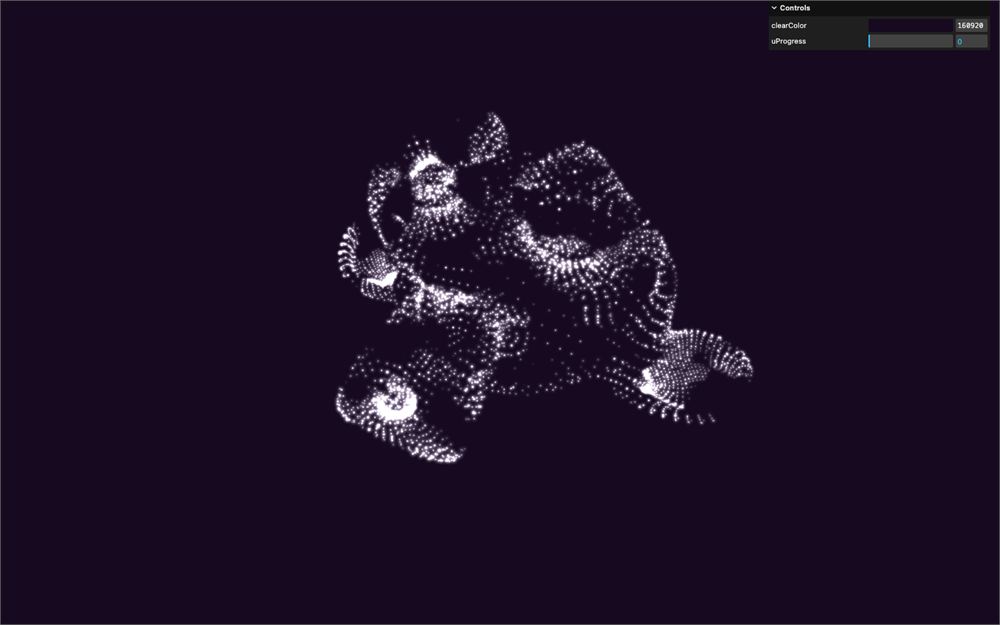
看起来还行,但暗色的部分表明有些区块低于 0.0。Simplex Noise 的取值范围是从 -1 到 +1。我们更希望值在 0 到 1 之间,并且我们想确保该值被限制在那个范围内。这也是平滑该值的好机会。
我们将使用经典的 smoothstep。
回到 vertex.glsl,对 noise 应用一个从 -1 到 1 的 smoothstep:
void main()
{
    // Mixed position
    float noise = simplexNoise3d(position);
    noise = smoothstep(-1.0, 1.0, noise);

    float progress = uProgress;
    // ...
}
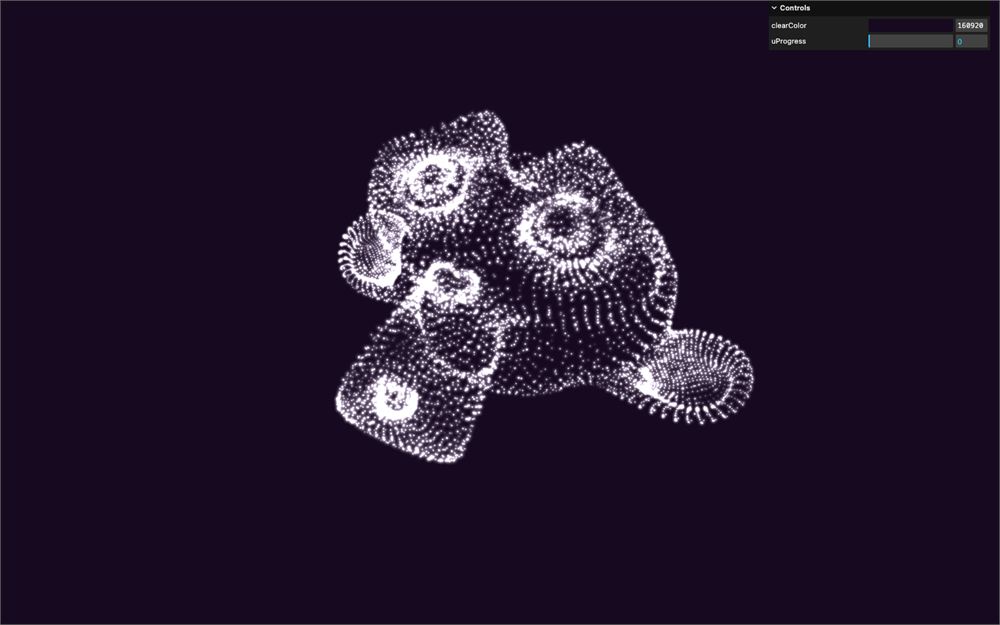
好多了。我们保留 vColor,它稍后会派上用场。
我们现在想根据那个 noise 来偏移 progress。但我们还需要当 uProgress 到达 1.0 时,所有粒子都处于 1.0。
事情开始变得有点复杂了。
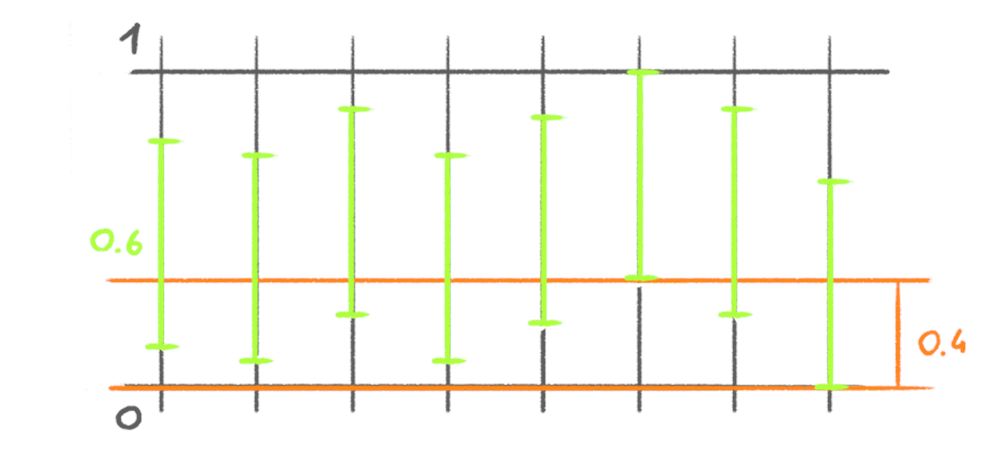
为了理解正在发生什么,这里有 8 个粒子的示例。
绿线表示从 0 到 1 的 progress:
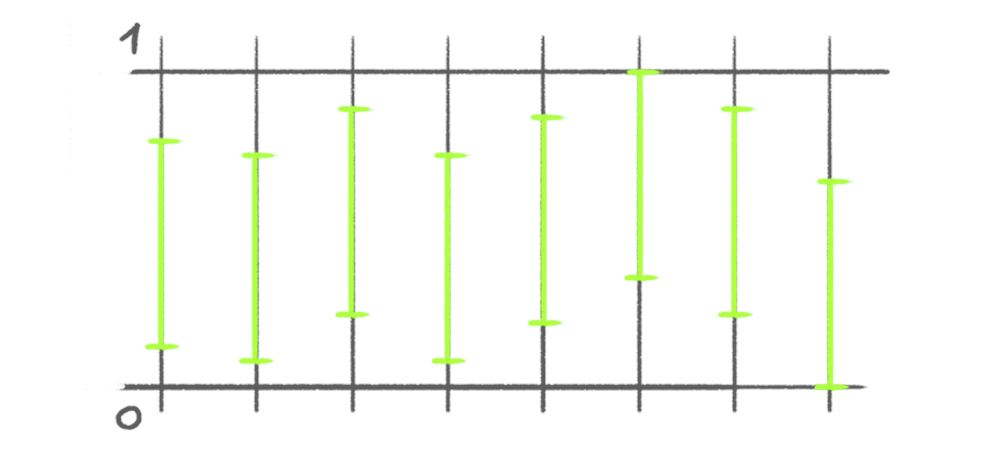
如你所见,所有绿线长度都相同,都是 0.6:
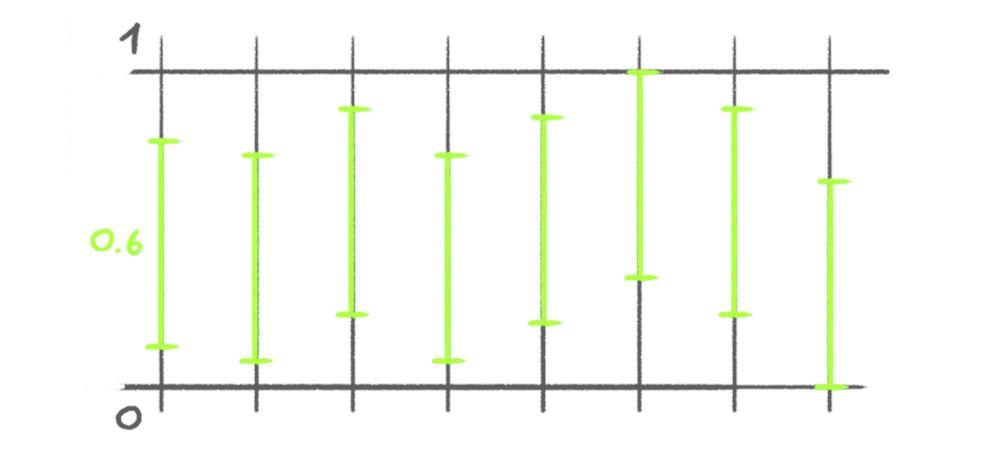
这意味着它们完成动画所需的时间都一样。我们称之为 duration(持续时间)。
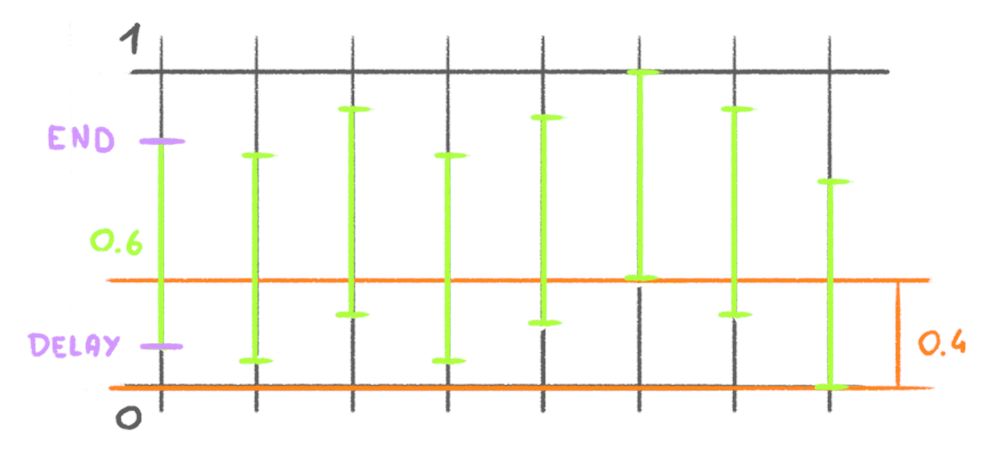
但它们在不同的时刻开始。我们称之为 delay(延迟)。
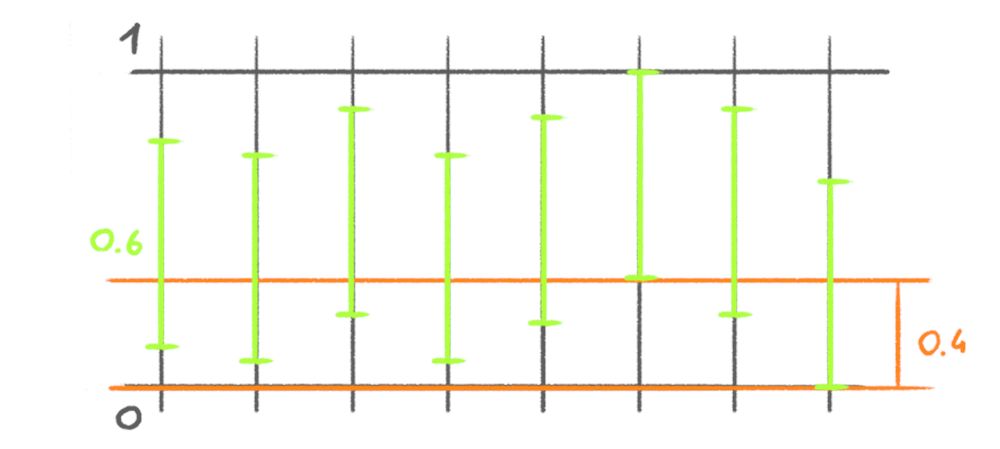
由于所有粒子的 duration 都是 0.6,这意味着 delay 需要介于 0 和 0.4 之间,这样才不会有粒子在 1 之后才结束。我们可以用 1.0 - duration 计算出最大 delay。
而 delay 将被乘以 noise:
我要剧透一下,我们将再次使用 smootshtep,这意味着我们需要知道下限和上限。
下限是 delay,我们需要计算上限,我们称之为 end。
既然我们知道它何时开始(delay)以及持续多久(duration),那么 end 可以计算为 delay + duration:
我们需要的一切都齐了。
在 vertex.glsl 中,在 progress 之前:
- 创建一个等于
0.4的float duration - 创建一个等于
(1.0 - duration) * noise的float delay - 创建一个等于
delay + duration的float end
void main()
{
    // ...

    float duration = 0.4;
    float delay = (1.0 - duration) * noise;
    float end = delay + duration;
    float progress = uProgress;

    // ...
}
我们现在可以对 uProgress 应用一个 smoothstep,并以 delay 和 end 作为界限:
void main()
{
    // ...

    float duration = 0.4;
    float delay = (1.0 - duration) * noise;
    float end = delay + duration;
    float progress = smoothstep(delay, end, uProgress);

    // ...
}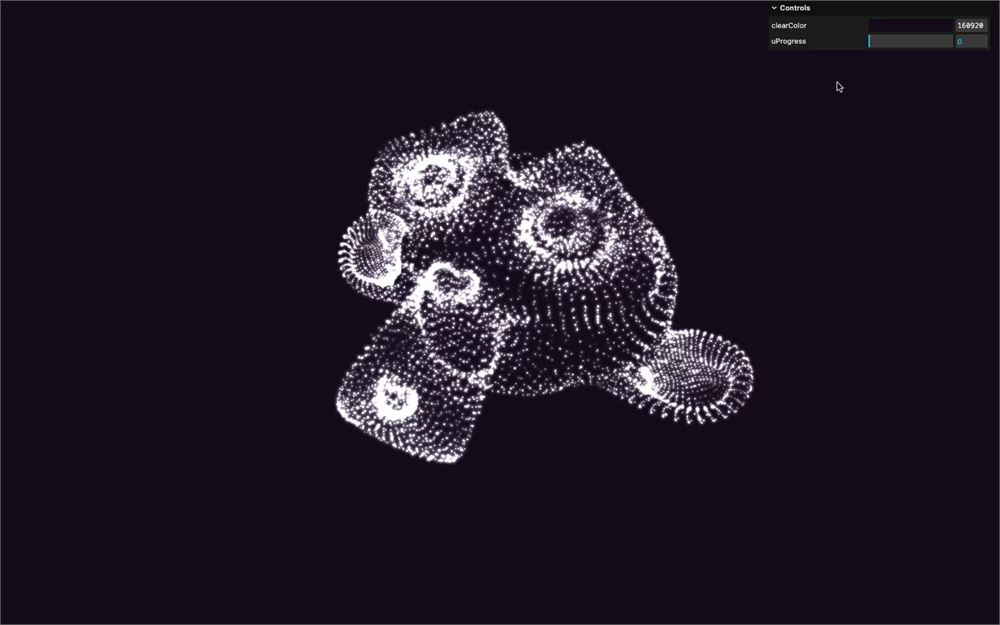
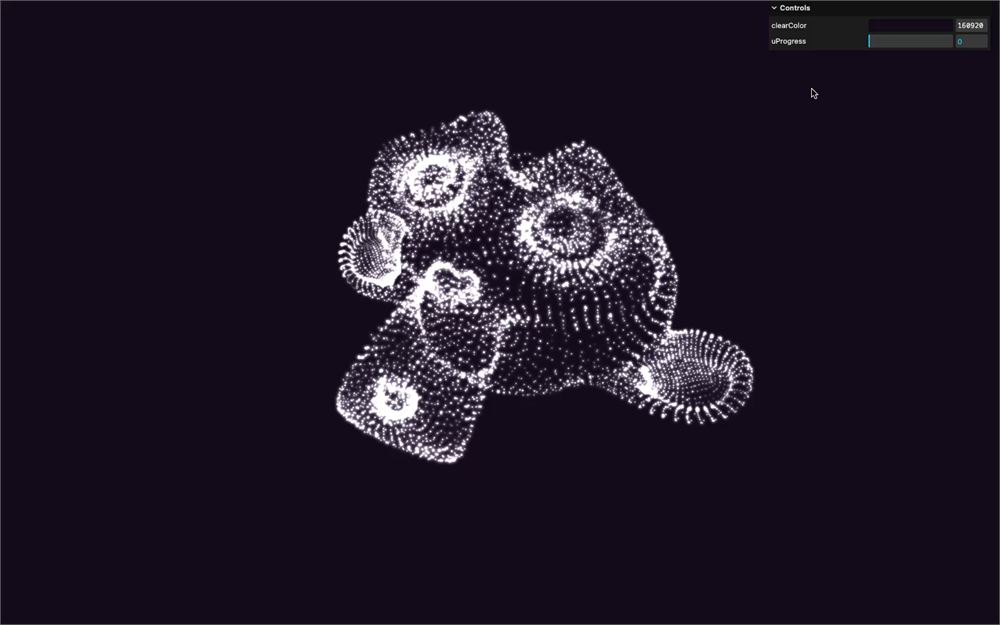
它生效了,但只对开始的那段动画有效。原因是我们把 position 用在了 simplexNoise3d() 中,而这个 position 对应的是初始形状,而不是目标形状。
为了解决这个问题,我们将用 aPositionTarget 计算第二个 Simplex Perlin,并根据 uProgress 在两者之间混合。
把第一个 noise 重命名为 noiseOrigin:
void main()
{
    // Mixed position
    float noiseOrigin = simplexNoise3d(position);
    // ...
}
创建一个名为 noiseTarget 的新变量,并把 aPositionTarget 用于 simplexNoise3d():
void main()
{
    // Mixed position
    float noiseOrigin = simplexNoise3d(position);
    float noiseTarget = simplexNoise3d(aPositionTarget);
    // ...
}
根据 uProgress 在 noiseOrigin 和 noiseTarget 之间混合出最终的 noise,并在其之上保留 smoothstep:
void main()
{
    // Mixed position
    float noiseOrigin = simplexNoise3d(position);
    float noiseTarget = simplexNoise3d(aPositionTarget);
    float noise = mix(noiseOrigin, noiseTarget, uProgress);
    noise = smoothstep(-1.0, 1.0, noise);

    // ...
}
Simplex Noise 的频率有点太高了。在两个 simplexNoise3d() 中把它乘以 0.2:
void main()
{
    // Mixed position
    float noiseOrigin = simplexNoise3d(position * 0.2);
    float noiseTarget = simplexNoise3d(aPositionTarget * 0.2);

    // ...
}
为 progress 制作动画
回到 JS,我们现在想用按钮来触发动画。
我们将在调试面板中放置 4 个按钮,每个形状一个,点击其中任何一个都会把粒子过渡到相应的形状。
把粒子切换到不同的形状需要 3 件事:
- 把
positionattribute 设为原始 geometry - 把
aPositionTargetattribute 设为目标 geometry - 让
uProgress从0动画到1
我们还需要保存当前索引,这样我们才能知道下一次应该从哪个 geometry 过渡。
让我们先在 particles 对象上设置一个 index 属性:
gltfLoader.load('./models.glb', (gltf) =>
{
    particles = {}
    particles.index = 0

    // ...
})
我们可以在初始的 position attribute 上使用 particles.index:
gltfLoader.load('./models.glb', (gltf) =>
{
    particles = {}
    particles.index = 0

    // ...
    particles.geometry.setAttribute('position', particles.positions[particles.index])
})
为了自动化向不同 geometry 的过渡,让我们在 tweaks 之前,在 particles 上创建一个 morph 方法:
gltfLoader.load('./models.glb', (gltf) =>
{
    // ...

    // Methods
    particles.morph = () =>
    {
    }

    // Tweaks
    // ...
})
给 morph 方法添加一个 index 参数:
gltfLoader.load('./models.glb', (gltf) =>
{
    // ...

    // Methods
    particles.morph = (index) =>
    {
    }

    // ...
})
在 morph 方法中,我们现在可以做之前说过的所有事情。
把 position attribute 设为原始 geometry,把 aPositionTarget attribute 设为目标 geometry:
gltfLoader.load('./models.glb', (gltf) =>
{
    // ...

    // Methods
    particles.morph = (index) =>
    {
        // Update attributes
        particles.geometry.attributes.position = particles.positions[particles.index]
        particles.geometry.attributes.aPositionTarget = particles.positions[index]
    }

    // ...
})
使用 gsap.fromTo() 让 uProgress uniform 从 0 动画到 1:
gltfLoader.load('./models.glb', (gltf) =>
{
    // ...

    // Methods
    particles.morph = (index) =>
    {
        // ...

        // Animate uProgress
        gsap.fromTo(
            particles.material.uniforms.uProgress,
            { value: 0 },
            { value: 1 }
        )
    }

    // ...
})
我们不使用 gsap.to(),因为我们需要它先从 0 开始,然后再到 1。
把 duration 设为 3,把 ease 设为 'linear',因为我们已经借助 smoothsteps 在 vertex shader 中对 progress 应用了缓动:
gltfLoader.load('./models.glb', (gltf) =>
{
    // ...

    // Methods
    particles.morph = (index) =>
    {
        // ...

        // Animate uProgress
        gsap.fromTo(
            particles.material.uniforms.uProgress,
            { value: 0 },
            { value: 1, duration: 3, ease: 'linear' }
        )
    }

    // ...
})
把 particles.index 替换为 index,这样下一次调用 morph 时就会把新形状当作旧形状:
gltfLoader.load('./models.glb', (gltf) =>
{
    // ...

    // Methods
    particles.morph = (index) =>
    {
        // ...

        // Save index
        particles.index = index
    }

    // ...
})
我们现在需要根据所按的按钮,用 0、1、2 或 3 来调用 morph 方法。
遗憾的是,我们无法向 lil-gui 发送带参数的函数。为了解决这一点,我们将创建 4 个函数,每个函数用对应的 index 调用 morph:
gltfLoader.load('./models.glb', (gltf) =>
{
    // ...

    particles.morph0 = () => { particles.morph(0) }
    particles.morph1 = () => { particles.morph(1) }
    particles.morph2 = () => { particles.morph(2) }
    particles.morph3 = () => { particles.morph(3) }
})
把这些方法添加到 gui:
gltfLoader.load('./models.glb', (gltf) =>
{
    // ...

    gui.add(particles, 'morph0')
    gui.add(particles, 'morph1')
    gui.add(particles, 'morph2')
    gui.add(particles, 'morph3')
})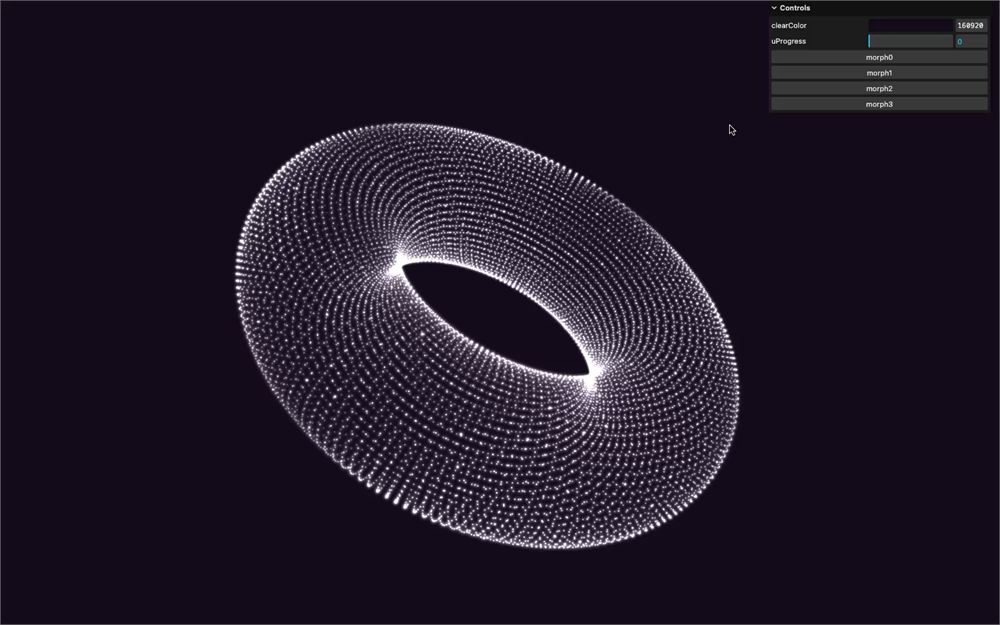
我们拥有了带动画的形变粒子,并且可以用简单的按钮在它们之间切换。
顺便说一句,我们可以让 uProgress 的调节项在值被做成动画时用 listen() 方法自我更新:
gltfLoader.load('./models.glb', (gltf) =>
{
    // ...

    gui.add(particles.material.uniforms.uProgress, 'value').min(0).max(1).step(0.001).name('uProgress').listen()

    // ...
})
随机大小
让我们更进一步,让我们的粒子更好看。
首先,通过给每个粒子分配不同的大小来增加一些随机性。
在 script.js 中,在 Geometry 部分,创建一个大小为 particles.maxCount 的 Float32Array 并保存为 sizesArray:
gltfLoader.load('./models.glb', (gltf) =>
{
    // ...

    // Geometry
    const sizesArray = new Float32Array(particles.maxCount)

    // ...
})
用随机值填充它:
gltfLoader.load('./models.glb', (gltf) =>
{
    // ...

    // Geometry
    const sizesArray = new Float32Array(particles.maxCount)

    for(let i = 0; i < particles.maxCount; i++)
	    sizesArray[i] = Math.random()

    // ...
})
像其他 attributes 一样,把它作为 aSize 发送给 geometry:
gltfLoader.load('./models.glb', (gltf) =>
{
    // ...

    // Geometry
    particles.geometry.setAttribute('position', particles.positions[particles.index])
    particles.geometry.setAttribute('aPositionTarget', particles.positions[3])
    particles.geometry.setAttribute('aSize', new THREE.BufferAttribute(sizesArray, 1))

    // ...
})
在 vertex.glsl 中,取回 aSize attribute 并用它乘以 gl_PointSize:
// ...
attribute float aSize;

// ...

void main()
{
    // ...
    gl_PointSize = aSize * uSize * uResolution.y;
    // ...
}
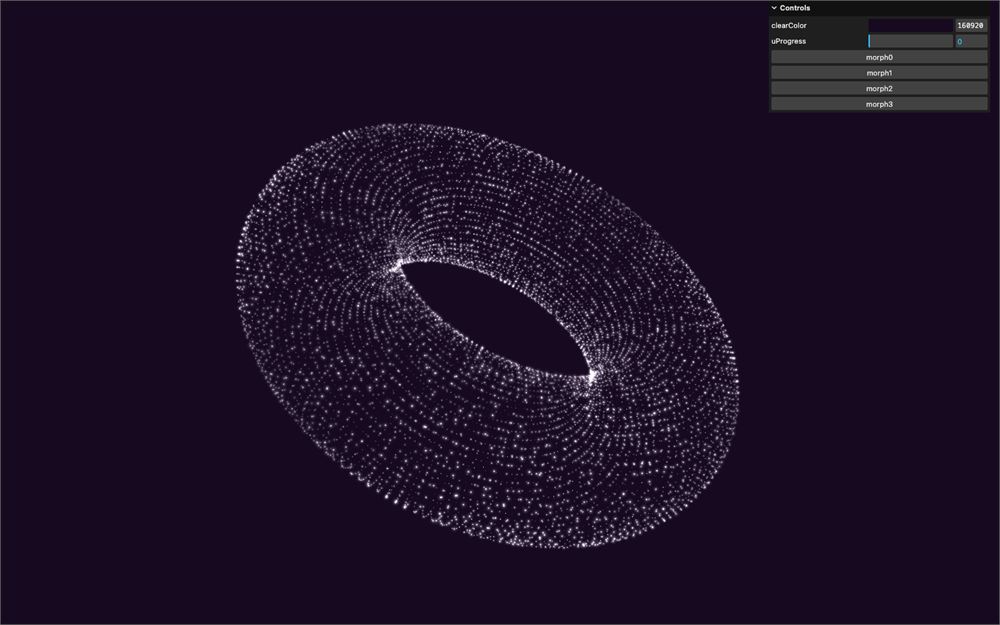
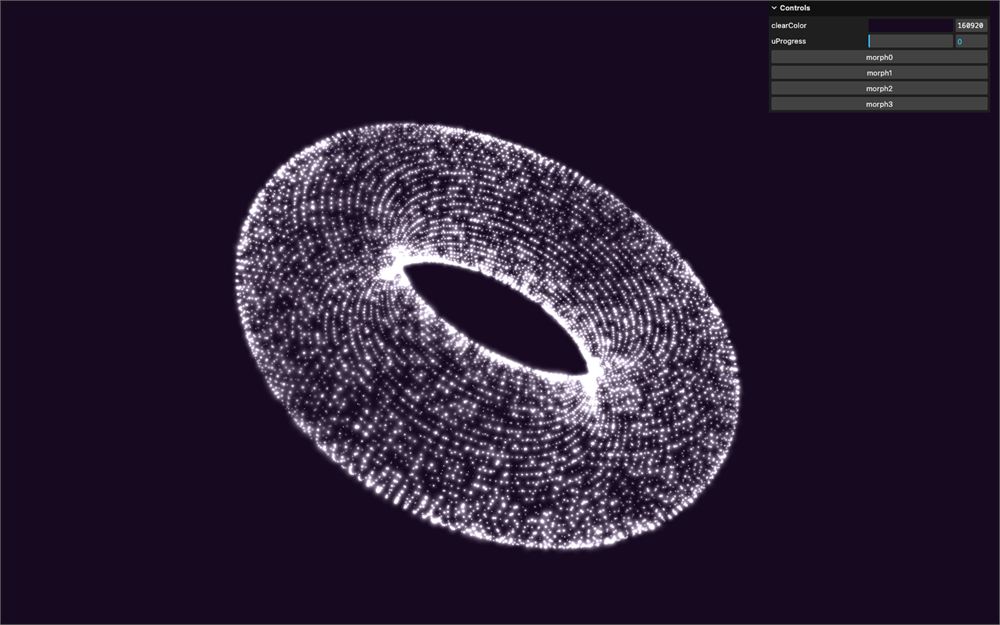
现在是让所有粒子变大的好时机。
把 uSize uniform 设为 0.4:
gltfLoader.load('./models.glb', (gltf) =>
{
    // ...
    particles.material = new THREE.ShaderMaterial({
        // ...
        uniforms:
        {
            uSize: new THREE.Uniform(0.4),
            // ...
        },
        // ...
    })

    // ...
})
颜色渐变
我们要添加的最后一项视觉改进是颜色。
目前,我们把 perlin 作为 vColor 发送到 fragment,这就是为什么我们只得到白色的变化。
我们将在两种颜色之间混合,并把 perlin 用作混合因子。
在 script.js 中,在 Material 部分,给 particles 添加两种颜色:
gltfLoader.load('./models.glb', (gltf) =>
{
    // ...

    // Material
    particles.colorA = '#ff7300'
    particles.colorB = '#0091ff'

    // ...
})
使用 Uniform 类和 Color 类把这些颜色发送到 uColorA 和 uColorB uniforms:
gltfLoader.load('./models.glb', (gltf) =>
{
    // ...

		particles.material = new THREE.ShaderMaterial({
        // ...
        uniforms:
        {
            // ...
            uColorA: new THREE.Uniform(new THREE.Color(particles.colorA)),
            uColorB: new THREE.Uniform(new THREE.Color(particles.colorB))
        },
        // ...
    })

    // ...
})
为 particles.colorA 和 particles.colorB 添加调节项,并在调节项变化时相应地更新 uniforms:
gltfLoader.load('./models.glb', (gltf) =>
{
    // ...

    // Tweak
    gui.addColor(particles, 'colorA').onChange(() => { particles.material.uniforms.uColorA.value.set(particles.colorA) })
    gui.addColor(particles, 'colorB').onChange(() => { particles.material.uniforms.uColorB.value.set(particles.colorB) })

    // ...
})
在 vertex.glsl 中,取回 uColorA 和 uColorB 作为 vec3 uniforms:
uniform vec3 uColorA;
uniform vec3 uColorB;
更新 vColor,并给它发送一个根据 noise 混合 uColorA 和 uColorB 的结果:
void main()
{
    // ...
    vColor = mix(uColorA, uColorB, noise);
}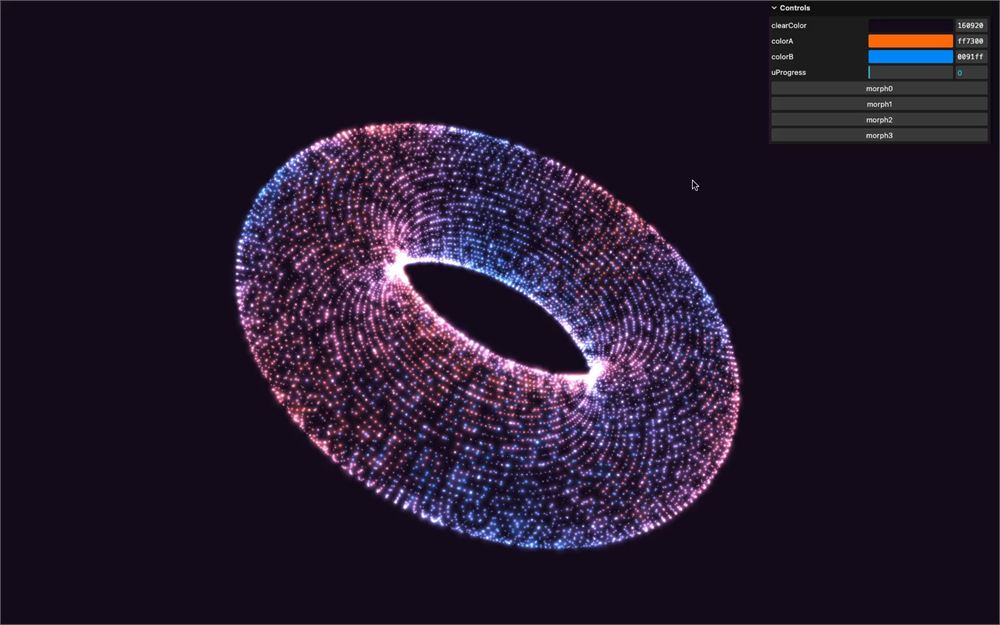
使用 noise 真正酷的一点是,颜色会与最先分离的部分相匹配。
视锥体剔除 bug
如果你形变成文字形状并向侧面移动 camera,在某个时刻整个物体会消失:
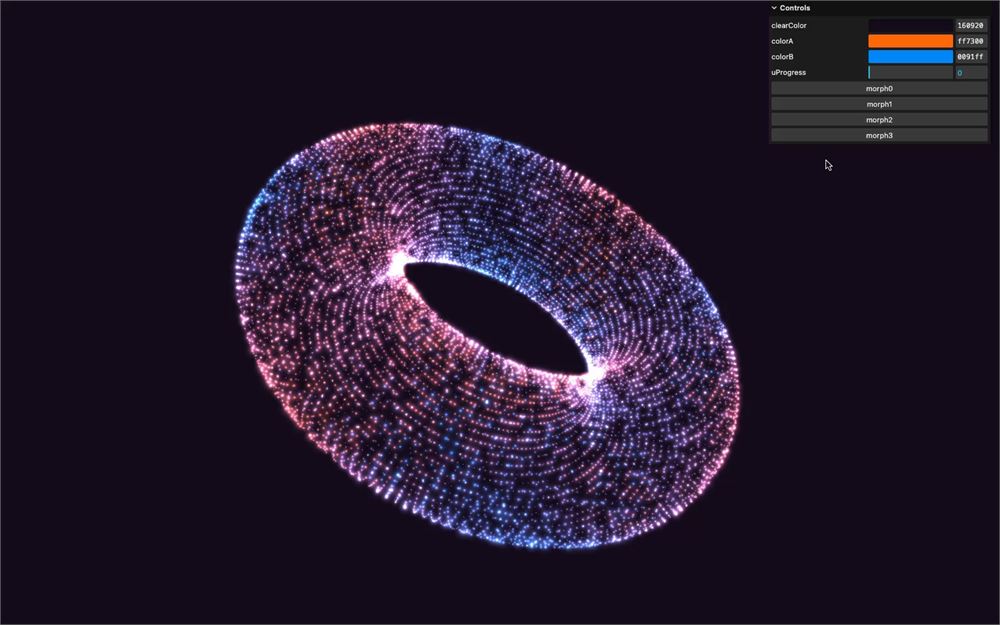
这是由视锥体剔除(frustum culling)造成的。
视锥体剔除是大多数实时渲染方案中都能找到的一项功能,它可以避免渲染不在视野内的对象,从而节省性能:
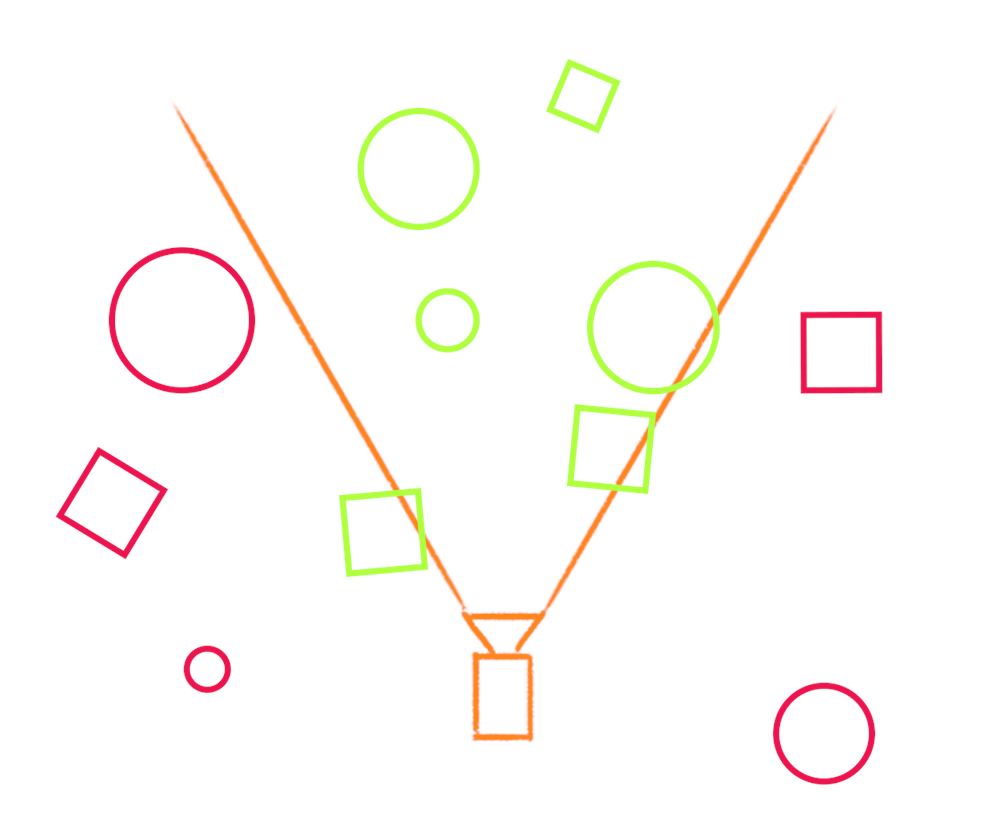
Three.js 支持这项功能。
为了知道对象是否在视野内,Three.js 会计算我们所说的“bounding”(包围体)。它是基于顶点对对象的一种数学表示。想象一个包围你对象的球体或盒子。这让计算变得容易得多,这一点很重要,因为 Three.js 需要每一帧都测试对象是否在视野内。
就 Three.js 而言,包围体可以是盒子或球体的形状。默认情况下,Three.js 会计算一个球体,你可以在 geometry 自身上找到它。
在创建 Points 之后,试着 console.log() 一下 boundingSphere:
gltfLoader.load('./models.glb', (gltf) =>
{
    // ...

		// Points
    particles.points = new THREE.Points(particles.geometry, particles.material)
    scene.add(particles.points)
    console.log(particles.points.geometry.boundingSphere)

    // ...
})
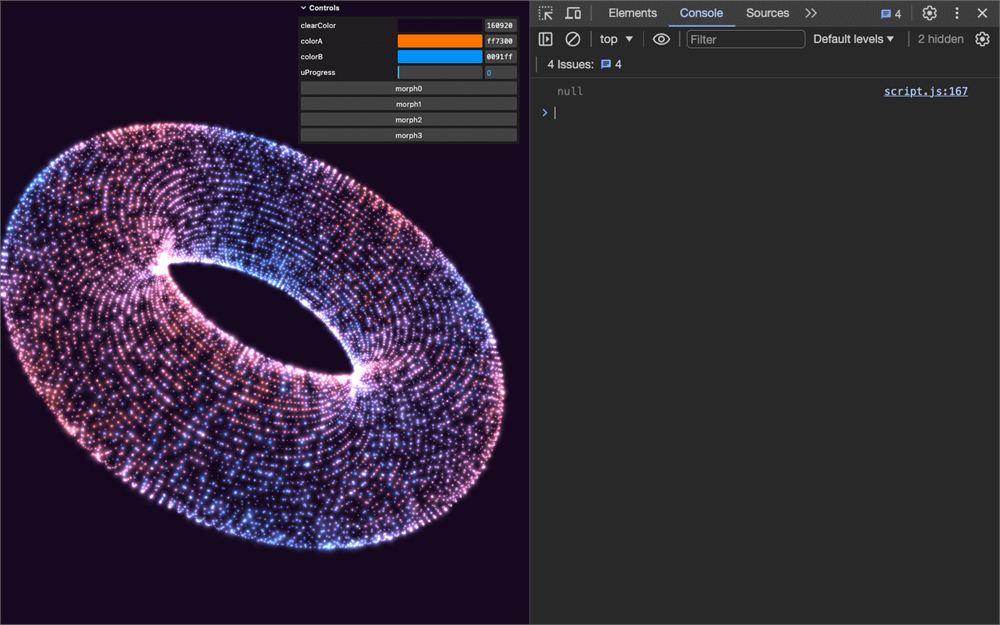
我们得到 null。有点奇怪,但这其实是有好理由的。
Three.js 只在需要时才计算包围体。在执行 console.log() 时,我们还没有渲染该对象。
但在对象第一次渲染时,Three.js 会意识到它首先需要知道对象的包围体,于是计算它,然后决定是否渲染它(如果它在视野内的话)。在下一帧,Three.js 将使用已经计算好的包围体。
如果我们真的想 console.log() 包围体,可以通过在初始渲染之后的下一帧、使用 requestAnimationFrame 来实现:
gltfLoader.load('./models.glb', (gltf) =>
{
    // ...

		// Points
    particles.points = new THREE.Points(particles.geometry, particles.material)
    scene.add(particles.points)

    window.requestAnimationFrame(() =>
    {
        console.log(particles.points.geometry.boundingSphere)
    })

    // ...
})
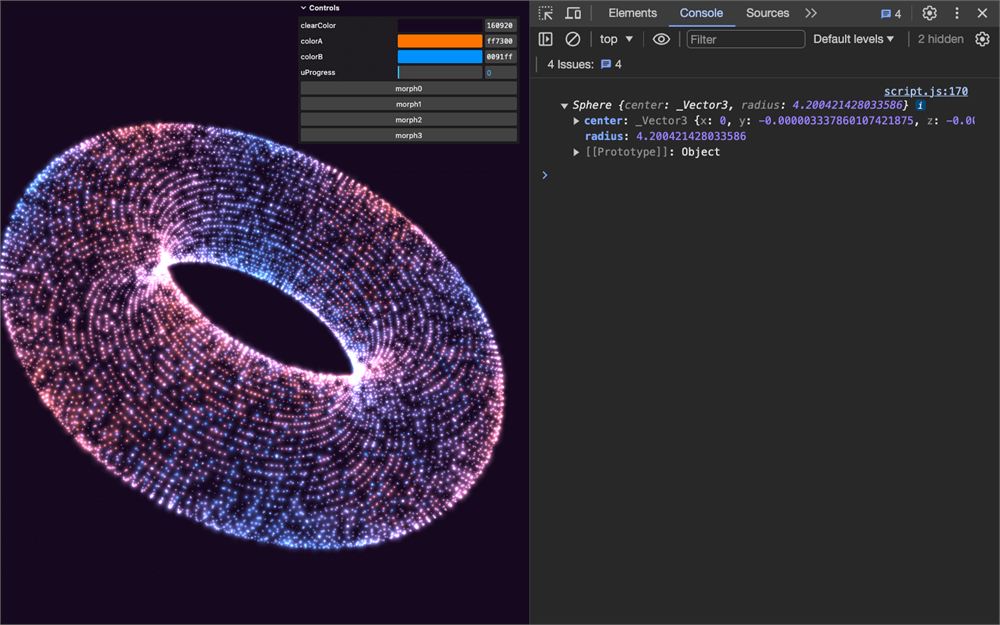
移除 console.log()。
很好,但遗憾的是,这并不能解决我们的问题。
但现在你明白了正在发生什么,以及为什么当我们向侧面移动 camera 时粒子会消失。
Three.js 根据初始形状计算了包围球,而初始形状是圆环。但 THREE.JS 形状要大得多。
有两种修复方式:
- 让 Three.js 重新计算包围球
- 让 Three.js 忽略视锥体剔除
遗憾的是,第一种方式很难应用,因为 Three.js 使用 position attribute 来计算包围体,而在我们的例子中,它是原始形状(我们正在离开的那个)。
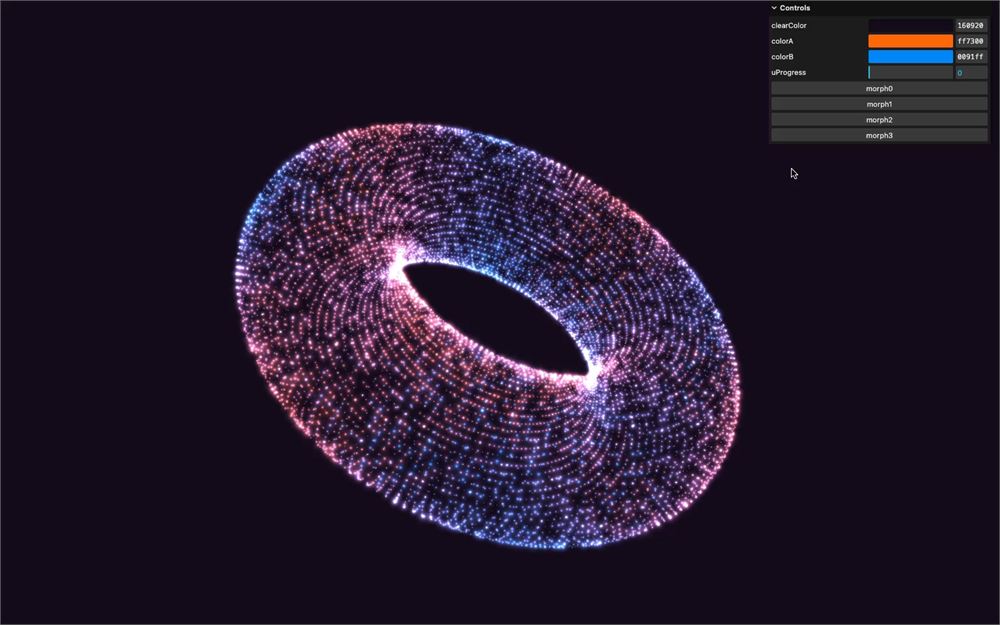
所以,让我们通过在 particles.points 上把 frustumCulled 设为 false 来停用视锥体剔除:
gltfLoader.load('./models.glb', (gltf) =>
{
    // ...

		// Points
    particles.points = new THREE.Points(particles.geometry, particles.material)
    particles.points.frustumCulled = false
    scene.add(particles.points)

    // ...
})
你可能会觉得这对性能不利,但如果你的粒子是体验的主要组成部分,它们将始终可见,那么视锥体剔除就没有必要了。
进一步探索
我们完成了这一课。
欢迎进一步探索。以下是一些建议:
- 重构我们创建
particles.positions的那部分。我们保持了简单,但你可以改进它。 - 让粒子始终有一些轻微的运动,为体验增添更多活力。
- 添加你自己的模型。
- 添加更多粒子。我用了数量适中的粒子来构成这些形状,但你可以在不出现性能问题的情况下增加十倍。
- 到处都添加一些粒子,因为我们目前拥有的粒子只有模型上的那些。
- 添加更多调节项来控制过渡,尤其是
amplitude变量,它可以极大地改变动画的外观和感觉。